

Knowledge base
Text formatting in Word: 11 tools to make your text look fantastic
Text formatting in Word gives your documents structure and visual appeal. Discover 11 essential tools to format text effectively and make your content stand out.

First published: 19-Apr-2021
Last updated: 02-Jul-2026
9 min read

Text formatting in Word gives your documents structure and visual appeal. This post walks through 11 essential character formatting tools to make your content stand out which enables you to …
- Create professional documents faster. Apply formatting tools to instantly transform plain text into polished content that looks credible and well-designed.
- Guide your reader’s attention naturally. Strategic use of colour and emphasis helps readers identify key information and navigate your document with ease.
- Maintain consistent visual style. Understanding Word formatting tools lets you apply uniform styling and branding across all your documents.
- 1. Overview of Word Formatting Tools
- 2. How to Select the Right Font
- 3. How to Change the Font Size
- 4. How to Add Bold, Italic or Underline for Emphasis
- 5. How to Select the Font Colour
- 6. When to Use Strikethrough
- 7. Superscript and Subscript Text
- 8. How to Change the Case of Your Text
- 9. Highlighting Text in Word
- 10. How to Quickly Format a Standout Title or Heading
- 11. How to Remove Text Formatting in Word
- 12. Format Painter Tool
- 13. How to Save Your Font Preferences as the Default Settings
- 13. Troubleshooting Steps
- 14. Frequently Asked Questions
- 15. Key Takeaways
RELATED POST: 7 ways that Word’s paragraph formatting tools can enhance your document design
1. Overview of Word Formatting Tools
Once you have written your basic document you can spruce it up with just a few clicks.
The process for formatting text is:
1Select the text you want to format.
2Apply the formatting.
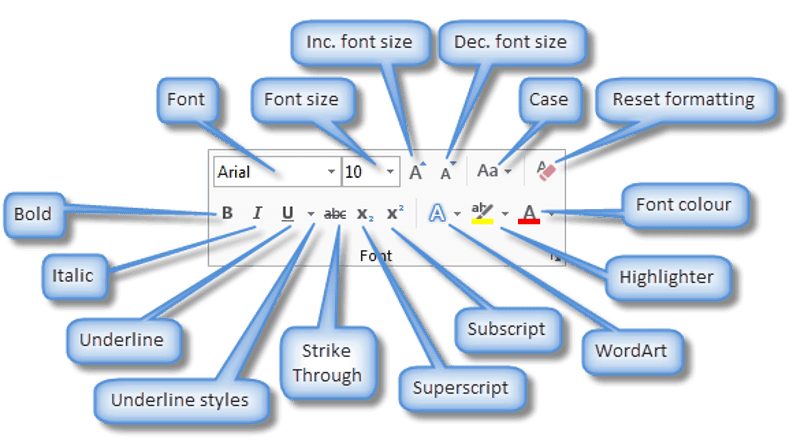
Most of the tools that you need to make your document look professional are on the Home ribbon. They are collected together into the Font group.
Here’s a quick breakdown and each of these will be covered in this post.
2. How to Select the Right Font
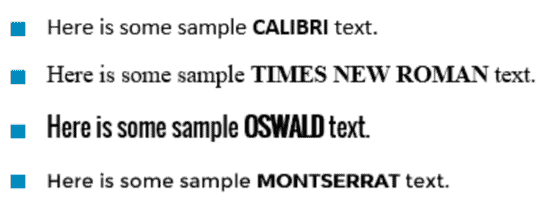
The font is the name given to the text style – what the text looks like. Many newspapers and magazines use a font like Times New Roman for a formal look but there are other simpler fonts available like Calibri.
To change the font:
1Select the text you want to apply the font to.
2Single-left-click the Home tab.
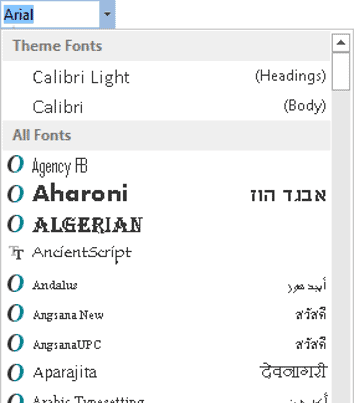
3Single-left-click the Font drop-down list then single-left-click the font you want to use.
A sample of some popular fonts are provided below.
3. How to Change the Font Size
To change the size of your selected text:
Method 1: Drop-down list
Select a Font Size from the drop-down list in the Font group on the Home ribbon.

Method 2: Icons
Click one of the two ‘A‘ icons, situated next to the font size drop down list. The first A increases the text size by one standard size. The second A decreases the text size by one standard size.

Method 3: Keyboard shortcut
Click Ctrl Shift > to increase the font size and Ctrl Shift < to decrease the font size.
4. How to Add Bold, Italic or Underline for Emphasis
To apply emphasis to a word or phrase, bold and italic are the quickest techniques to use. Here is a comparison:
- Regular text.
- Bold text.
- Italic text.
- Underlined text.
- Bold italic underlined text.
There are 3 standard icons that you will find in every Microsoft Office program.

- Apply bold formatting by clicking the B icon, or press Ctrl B on the keyboard.
- Apply italic formatting by clicking the I icon, or press Ctrl I on the keyboard.
- Apply underline formatting by clicking the U icon, or press Ctrl U on the keyboard.
To change the underline style:
1Click the drop-down arrow next to the U icon.
2Select the underline type that you want – single, double, thick, dotted, dashed etc.
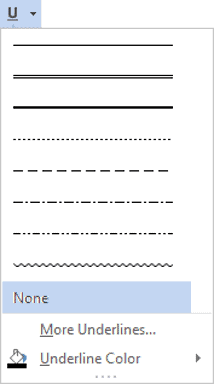
To change the underline colour:
3Click Underline Color (at the bottom of the menu).
4Choose a colour from the palette.
5. How to Select the Font Colour
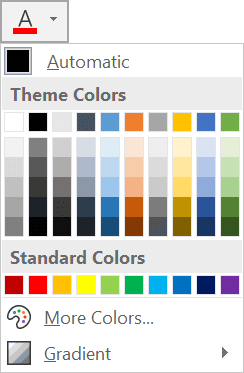
To change the colour of your text:
1First, select the text that you want to change the colour for.
2Single-left-click the Home tab.
3Single-left-click the Font Color drop-down list in the Font group.
4Single-left-click a colour from the palette.
RELATED POST: 7 ways that Word’s paragraph formatting tools can enhance your document design
6. When to Use Strikethrough
Strikethrough puts a line through your text like this.
This is an example of text that has been struck through.
You can use this when you need to keep the text for historical reasons but clearly mark it as out of date, obsolete, no longer stocked or one of many other reasons.
To apply strikethrough to your text:
1Select the text.
2Single-left-click the Home tab.
3Single-left-click the Strikethrough icon in the Font group.

7. Superscript and Subscript Text
Superscripted text is little text that sits above the baseline, e.g. 360o, 42 or 16th.
Subscripted text is little text that sits below the baseline, e.g. H2O, CO2, H2SO4.
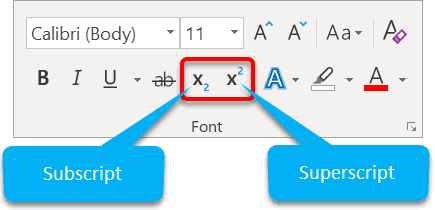
To apply superscript:
1Select the text.
2Single-left-click the Home tab.
3Single-left-click the Superscript icon in the Font group.
4The keyboard short cut is Ctrl Shift + (plus).
To apply subscript:
1Select the text.
2Single-left-click the Home tab.
3Single-left-click the Subscript icon in the Font group.
4The keyboard short cut is Ctrl Shift – (minus).
8. How to Change the Case of Your Text
There are a number of different case options in Word. This is how you change the case of your text:
1Single-left-click the Home tab.
2Click the Aa icon in the Font group.
3Choose your desired CASE option.
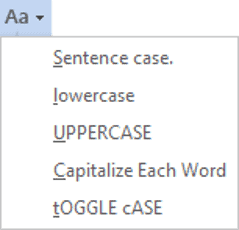
Pressing Shift F3 cycles through the UPPERCASE, lowercase and Capitalise Each Word options. The other two options are not included in the cycle.
Here are what the different case options mean:
- Sentence Case: Capitalise the first letter of the first word in the sentence.
- lowercase: Make all the selected text lower case (i.e. un-capitalise everything).
- UPPERCASE: CAPITALISE all selected text. Some people describe it as SHOUTING.
- Capitalise Each Word: Capitalise the first letter of EVERY word.
- tOGGLE cASE: Convert UPPER CASE letters to lower case and vice versa.
The Toggle Case feature has become almost redundant since Microsoft added CAPS LOCK detection. What this means is that if your CAPS LOCK is on, but you don’t realise, then as soon as you press space or ENTER, Word corrects the incorrect case and turns the CAPS LOCK off for you. Whatever you type next appears in the correct case. If you look at your hands when you type (like me) you may be completely oblivious that this action has even occurred!
9. Highlighting Text in Word
Just as you would take a highlighter pen to highlight certain portions of text in a book or report, you can add highlight to any section of text in Microsoft Word. Highlighting attracts attention.
Perhaps you have prepared a document for somebody and need to point out the important sections.
Perhaps you are reviewing somebody else’s work (or even your own) and want to mark sections to revisit later.
There are 2 ways to use the highlighter tool.
Method 1 (for a one-off highlight):
1Select the text you want to highlight.
2Single-left-click the Home tab.
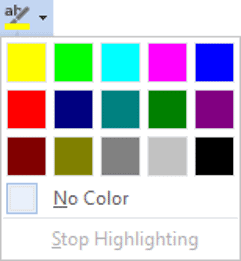
3Click the ab Highlight icon in the Font group (to use default yellow).
4If you want to choose your own highlight colour, click the drop-down arrow on the icon, then choose one of the highlight colours in the palette. Stick with the lighter colours.
Method 2 (for multiple highlights)
1Single-left-click the Home tab.
2Double-left-click the ab Highlight icon in the Font group.
3The regular mouse pointer will change to a highlighter icon.
4Select the first portion of text that you wish to highlight. The highlight is added but the highlighter tool is still active.
5Select as many other portions of text as you want.
6When you are done, press Escape or single-left-click the ab Highlight icon again.
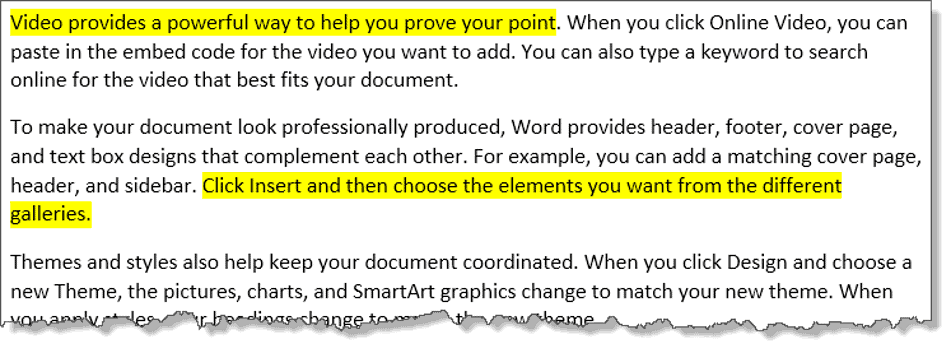
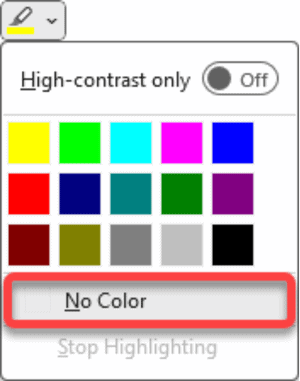
If you change your mind, this is how to de-highlight your text
1Select the highlighted text.
2Single-left-click the Home tab.
3Click the drop-down arrow on the ab Highlight icon in the Font group and choose No Color.
10. How to Quickly Format a Standout Title or Heading
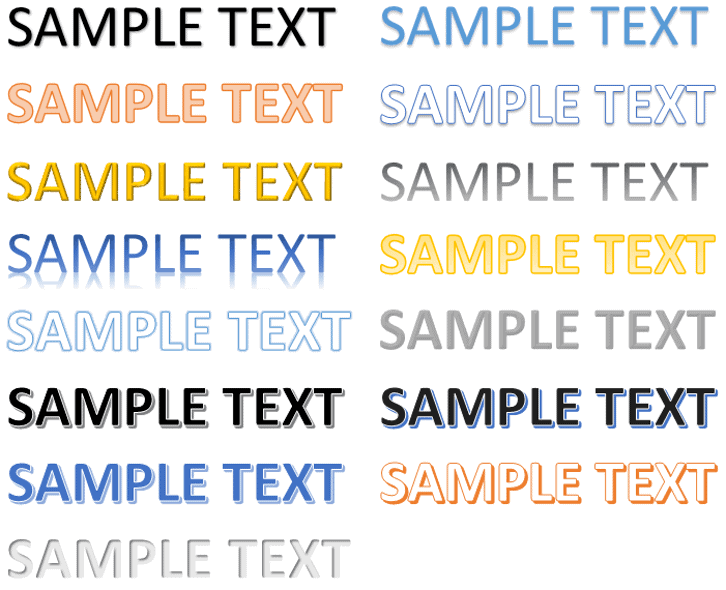
WordArt is a feature that has been around for many years. The conventional way to create WordArt is to choose the tools from the Insert ribbon, choose a style, type some text and then play with the settings.
In Word, there is a second tool that lets you select some existing text and apply WordArt Styling to it.
Here’s the process:
- Select your text (normally a title or heading).
- Click the blue A icon (called Text Effects and Typography).
- Select one of the thumbnail images from the gallery to apply the effect to your text.
- Switch the style at any time.
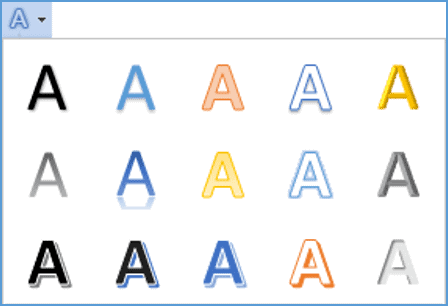
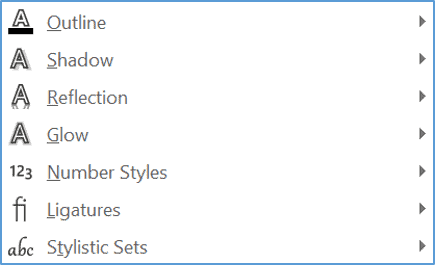
- Change the outline settings using the options underneath. You can adjust colour, thickness and style, shadows, reflection and glow settings. You don’t have to stick with the default settings in the main gallery.
Here are some samples of text effects and typography:
11. How to Remove Text Formatting in Word
Sometimes you need to strip all formatting from text and return it to plain text. This is particularly useful when copying text from websites or other documents that contain unwanted formatting.
1Select the text with formatting you want to remove.
2Single-left-click the Home tab.
3Click the Clear All Formatting icon (the A with an eraser) in the Font group.
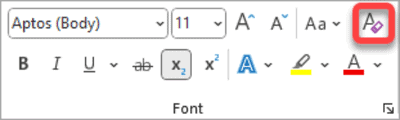
Alternatively, you can press Ctrl Spacebar to remove character formatting or Ctrl Shift N to apply the Normal style.
12. Format Painter Tool
The Format Painter tool copies text formatting in Word (but not the content) then applies that formatting to another text selection. This saves time when you want consistent formatting throughout your document.
1Select text that has the formatting you want to copy.
2Single-left-click the Format Painter icon (the paintbrush) on the Home tab.
3Select the text you want to apply the formatting to.
For multiple selections, double-click the Format Painter icon. This keeps the tool active until you press Escape or click the icon again.
13. How to Save Your Font Preferences as the Default Settings
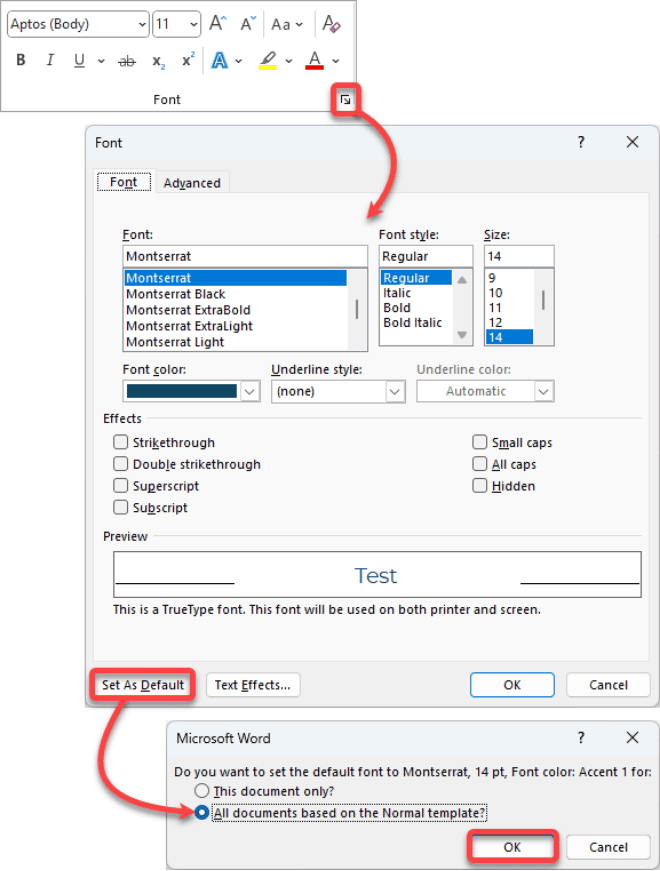
1Click the small launcher icon in the bottom-right corner of the Font group on the Home ribbon.
2Set your font preferences.
3Click ‘Set As Default‘ at the bottom of the dialog box.
4Select ‘All documents based on the Normal template‘ and click OK to apply it to all future documents.
13. Troubleshooting Steps
14. Frequently Asked Questions
15. Key Takeaways
- Access text formatting tools on the Home ribbon in the Font group where most formatting options are conveniently located.
- Open the Font dialog for additional formatting options by clicking the launcher icon in the bottom-right corner of the Font group (on the Home ribbon). This displays both ribbon tools and extra formatting features.
- Master essential text formatting including font, font size, font colour, emphasis tools like bold, italic and underline, strikethrough, superscript, subscript, WordArt and the highlighter tool.
- Use keyboard shortcuts to speed up your workflow with Ctrl B (bold), Ctrl I (italic), Ctrl U (underline) and other quick formatting commands.
- Apply Format Painter to quickly copy formatting from one text selection to another, maintaining consistency throughout your document.
- Remove unwanted formatting using the Clear All Formatting button or Ctrl Spacebar to strip text back to default styling.
Shhh! Keep this to yourself but Jason is the guy they sneak in the back door to fix Microsoft 365 disasters when all else has failed. He's quite the straight shooter, breaking things down into simple steps and giving you advice you can actually use.
Yes, he takes on client projects and 1:1 troubleshooting so if you would like to finally get that project finished - you know the one - then go ahead - just reach out.


2 responses to “Text formatting in Word: 11 tools to make your text look fantastic”
In the opening graphic, the balloons for “subscript” and “superscript” seem to be swapped.
Nice