

Knowledge base
Subdocuments & Master Documents in Word: Good document management
Master Document Word features let you create, merge, split and manage subdocuments in Outline view for faster processing and better co-editing and management.

First published: 26-Jun-2020
Last updated: 22-Oct-2025
7 min read
As your document grows it becomes harder to manage and it makes sense to break it into smaller chunks. Think about how a regular book is divided into chapters or sections. In Word, you can create a master document in Word which acts as a container for all its subdocuments.
This has several advantages:
- Microsoft Word runs much faster (compared to processing a single large document).
- Different people can work on different subdocuments concurrently.
- Making a change to a subdocument is much quicker than making a change on a large document.
- Restructuring a master document is much quicker than making a change on a large document.
- Subdocuments can be used in other master documents.
This post explains the process. Let’s get right to it.
- 1. How to Access the Master Document and Subdocument Tools in Word
- 2. How to Insert or Create a Subdocument in Word
- 3. How to Edit a Subdocument in Word
- 4. How to Expand or Collapse Subdocuments
- 5. How to Expand or Collapse Document Heading Levels
- 6. How to Only Show the Top-level Headings
- 7. How to Merge or Split Subdocuments
- 8. How to Unlink or Lock Subdocuments While You Are Editing
- 9. Caution! Things You Should Know about Subdocuments
- 10. How to Remove or Disconnect a Subdocument
- 11. Converting a Master Document Back to a Regular Document
- 12. Troubleshooting Steps
- 13. Frequently Asked Questions
- 14. Key Takeaways
1. How to Access the Master Document and Subdocument Tools in Word
The best approach to utilising master and subdocuments is to create all your subdocuments first, at least in draft form. Once in place, create a master document that brings all the subdocuments together.
To make use of master and subdocuments, you must be in outline view.
To switch to outline view:
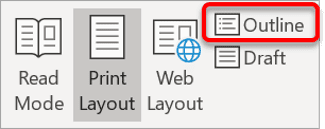
1Select the View tab.
2Click the Outline icon in the Views group. The Outlining ribbon will be displayed. You can only see this ribbon when you are in outline view.
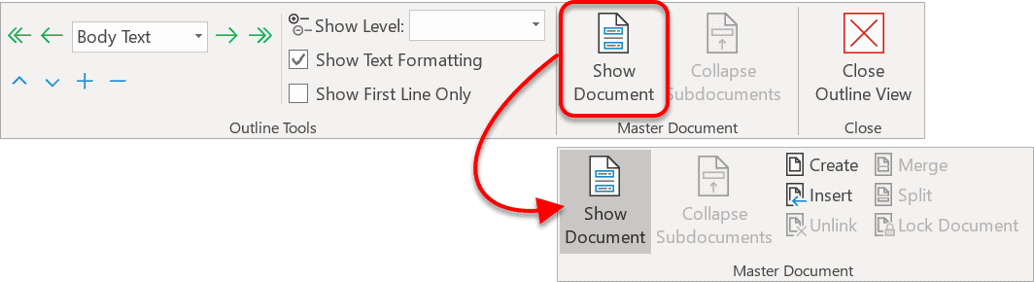
3Click the Show Document icon in the Master Document group. This expands the Master Document group and displays the tools you need. Apart from Create and Insert, all other options are initially greyed out.
2. How to Insert or Create a Subdocument in Word
To insert an existing document as a subdocument:
1On the Outlining ribbon click Show Documents, if necessary.
2Position the cursor.
3Click the Insert icon in the Master Document group.
4Locate and select the subdocument. Click the Open button.
To create a new subdocument:
1On the Outlining ribbon click Show Documents, if necessary.
2Select the content that will become the new subdocument. The content must include at least one heading style.
3Click the Create icon in the Master Document group.
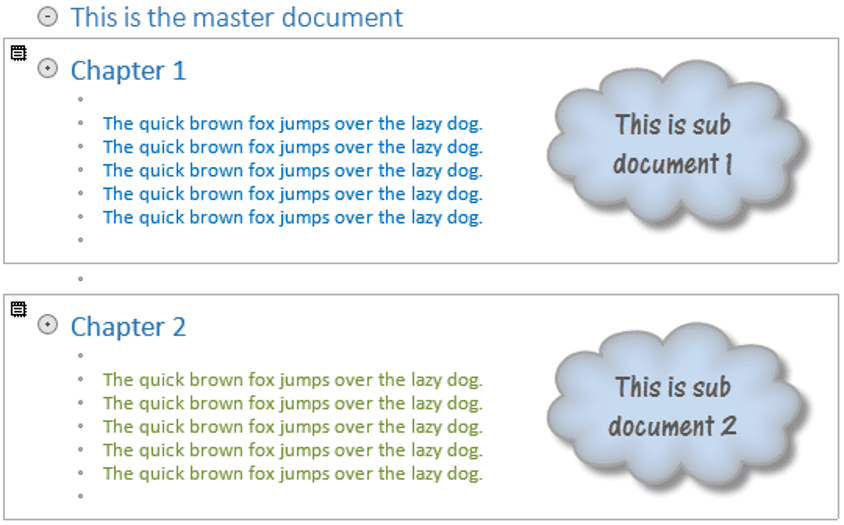
A subdocument is inserted into the main document.
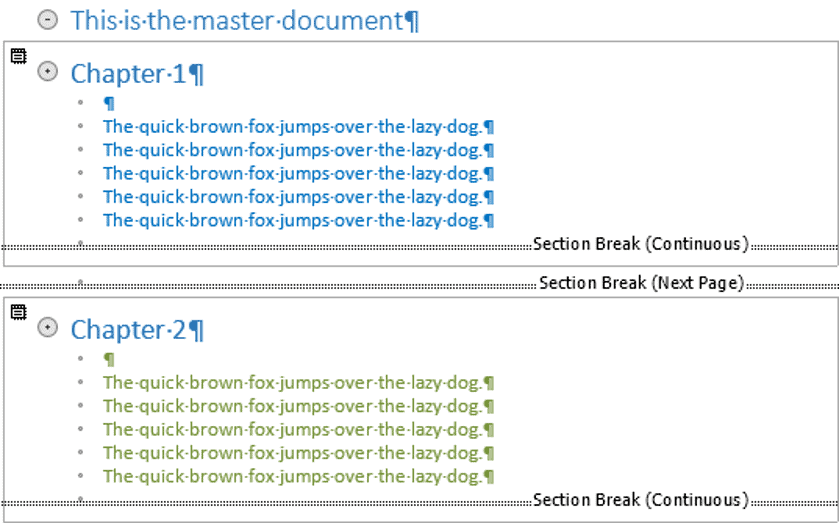
- The subdocument has a grey border and a small document symbol in the top-left corner.
- A continuous section break is added automatically at the end of the subdocument.
- You can view or hide the section breaks by clicking the Show Documents icon or the pilcrow icon (looks like a backward P) on the Home ribbon.
3. How to Edit a Subdocument in Word
There are several ways to edit a subdocument:
- Open the subdocument normally and start editing, or
- Double-click the small document symbol in the top-left corner to open the subdocument in a new window.
When the subdocument is open, a padlock symbol is displayed on the master document in Word, in the top-left corner of the subdocument box. This prevents changes being made to the subdocument from two places at once. The padlock also appears if the subdocument is read-only or has password protection.
You may edit the subdocument directly within the master document. Any changes are automatically saved to the subdocument.
If you make changes to the subdocument in a separate window, the changes are reflected on the master document when the subdocument is saved.
4. How to Expand or Collapse Subdocuments
When a subdocument is expanded, the text is displayed in full.
When a subdocument is collapsed, only the pathname to the file is displayed.
Click the Expand Subdocuments or Collapse Subdocuments to toggle between the two states.
5. How to Expand or Collapse Document Heading Levels
The document structure is clearly laid out.
Next to each heading (that uses Heading 1, Heading 2, Heading 3 etc.), there is a + symbol.
- Double-click the + symbol to collapse or expand the section.
- You can also position the cursor then click the + symbol on the Outlining ribbon to expand a section or click the – symbol to collapse a section.
6. How to Only Show the Top-level Headings
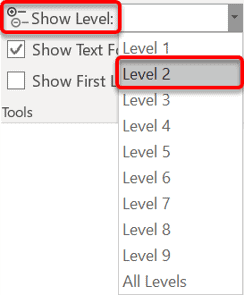
To collapse all the detail in a large document in one hit, you can use the Show Level tool in the Outline Tools group.
- Choose Show Level | Level 1 to collapse everything except Level 1 headings.
- Choose Show Level | Level 2, to collapse everything except Level 1 and Level 2 headings.
- And so on.
7. How to Merge or Split Subdocuments
To merge two or more subdocuments into a single subdocument:
1Select all the text in the subdocuments you wish to merge.
2Click the Merge icon in the Master Document group.
To split a subdocument into two separate subdocuments:
1Select the text that you wish to split off into a separate subdocument.
2Click the Split icon in the Master Document group.
- If the text was originally its own subdocument that was merged, the original subdocument filename is re-used.
- If the text is being split for the first time, a new subdocument is created in the same folder as the master document. The first line of selected text is used as the default filename.
8. How to Unlink or Lock Subdocuments While You Are Editing
Click Unlink to retain the subdocument text in the master document but disconnect the link.
- No future changes to the subdocument will flow through to the master document.
- The subdocument must be inserted again to reestablish the link.
Click Lock Document to lock the subdocument link and prevent changes made in the master document from flowing back into the subdocument. Click again to reestablish the flow.
9. Caution! Things You Should Know about Subdocuments
- A subdocument should never be renamed. If it is, the master document will be unable to locate it.
- Master document settings (e.g. footers, styles etc.) override any identically named styles in the subdocument. New styles created separately within the subdocument will be pulled into the master document automatically.
10. How to Remove or Disconnect a Subdocument
To remove a subdocument from your master document in Word:
1Switch to Outline view if you’re not already there.
2Click the subdocument icon in the top-left corner of the subdocument you want to remove.
3Press Delete on your keyboard.
This removes the subdocument from the master document but does not delete the original file. The subdocument file remains intact in its original location.
If you want to disconnect the link but keep the content in your master document, use the Unlink option instead. This converts the subdocument into regular master document content with no connection to the original file.
11. Converting a Master Document Back to a Regular Document
If you no longer need the master document structure, you can convert everything back to a single regular Word document.
To flatten your master document:
1Open your master document and switch to outline view.
2Select all subdocuments by clicking the first subdocument icon, then hold Shift and click the last subdocument icon.
3Click Unlink in the Master Document group.
4Switch back to Print Layout view.
5Save the document with a new filename.
Your master document is now a standard single-file document. All content from the subdocuments is now embedded directly in the file. The original subdocument files remain unchanged in their locations.
12. Troubleshooting Steps
13. Frequently Asked Questions
14. Key Takeaways
- A master document in Word pulls together the contents of several subdocuments. This setup enhances collaboration by allowing multiple documents to be worked on concurrently and the smaller file sizes mean faster processing.
- Master and subdocument tools are only available in outline view. Click the Show Documents icon to reveal the Documents toolset.
- An existing document can be inserted into the master document or a new subdocument can be created.
- If somebody else has a subdocument open, a padlock symbol is displayed on the master document to prevent changes being made.
- A subdocument can be edited within the master document if it is not locked.
- A subdocument can be locked within the master document by clicking the Lock Document icon. This prevents anybody else making changes to the subdocument until it is unlocked.
- A subdocument can be opened by clicking the icon in the top-left of the subdocument.
- Subdocuments can be expanded or collapsed. For collapsed subdocuments, a hyperlink is displayed.
- Two or more subdocuments may be merged.
- One subdocument may be split into two subdocuments.
- Subdocuments can be removed from the master document without deleting the original files.
- Master documents can be converted back to regular single-file documents by unlinking all subdocuments.
Shhh! Keep this to yourself but Jason is the guy they sneak in the back door to fix Microsoft 365 disasters when all else has failed. He's quite the straight shooter, breaking things down into simple steps and giving you advice you can actually use.
Yes, he takes on client projects and 1:1 troubleshooting so if you would like to finally get that project finished - you know the one - then go ahead - just reach out.


3 responses to “Subdocuments & Master Documents in Word: Good document management”
Please, update your instructions. It seems that none of the icons or features in this post exist on Word anymore. I’m not sure if Word got rid of the master document and subdocument feature or if it is just extremely hard to figure out with its current layout.
I am working on splitting a subdocument out of a master document that was created by someone else and having an issue. The subdocument is apx. 40 pages, but only 3 pages come over to a new separate document. I have checked for reasons of the “create” box only going around the 1st 3 pages and can’t seem to find an answer to why it is not pulling the entire section. I do see section breaks continuous at the end of previous Chapter. There are some section break next page within the 40 pages too. The 97 master document contains 10 documents and each document starts with Heading 9 text (no numbering, just text), then goes to next paragraph being level 1 to start numbering in the document. This is day 2 of trying to figure out the issue. Any suggestions?
Hi Michelle. This is a tricky one to answer without seeing the documents firsthand but here are a couple of suggestions.
Because you are in Outline view, check that content in the subdocuments is expanded, not collapsed. Every heading level can be collapsed and you may have missed one/some.
As an alternative approach, you can use { INCLUDETEXT “yoursubdocumentname.docx” }. You need to press Ctrl F9 (or Ctrl Fn F9 on some keyboards) to get the braces then type the rest inside the braces. Alternatively, go to the Insert tab | Quick Parts | Field | INCLUDETEXT.
– Ideally, your sub-document will be in the same folder. If not, you need to also include the drive letter and all the folders leading to your document (e.g. G://folder/folder/folder/yoursubdocumentname.docx).
– Right-click the INCLUDETEXT field any time to toggle between the field name and the subdocument content or to update/refresh the content.
There is a separate post for INCLUDETEXT here