

Knowledge base
Create Master Document Word Files Using INCLUDETEXT Fields
Create master document Word files with INCLUDETEXT fields. Complete guide to Word subdocuments, Microsoft Word fields, and document management automation.

First published: 25-Jun-2020
Last updated: 22-Oct-2025
7 min read

As your document grows it becomes harder to manage and it makes sense to break it into smaller chunks.
Think about how a regular book is divided into chapters or sections. In Word, you can create a master document which acts as a container for all its subdocuments.
The computer can process the document faster, different contributors can work on different documents at the same time, maintenance is faster, and styling can be controlled centrally from the master document.
This post walks through how to set up a master document using the INCLUDETEXT field.
Implementing master- and sub-documents using the INCLUDETEXT field has the following benefits:
- Collaborative editing where multiple team members can work on different Word subdocuments simultaneously without conflicts.
- Consistent formatting across all sections by controlling field styles from a central master document.
- Reduce the risk of file corruption by distributing large documents into manageable chunks that load and save faster.
- 1. What Does a Master Document Look Like With INCLUDETEXT Field
- 2. How to Insert an INCLUDETEXT Field in a Master Document
- 3. How to Toggle the INCLUDETEXT Field with Its Content
- 4. How to Update a Master Doc With Changes to a Sub-Doc
- 5. How to Remove INCLUDETEXT Fields From a Master Document
- 6. Best Practices for Managing Master Documents
- 7. Choosing Between INCLUDETEXT and Other Word Fields
- 8. INCLUDETEXT Field Options and Switches
- 9. Troubleshooting Steps
- 10. Frequently Asked Questions (FAQs)
- 11. Summary
1. What Does a Master Document Look Like With INCLUDETEXT Field
Here is one of my training manuals which weighs in at 148 pages.
The whole manual can be condensed into this master document Word structure.
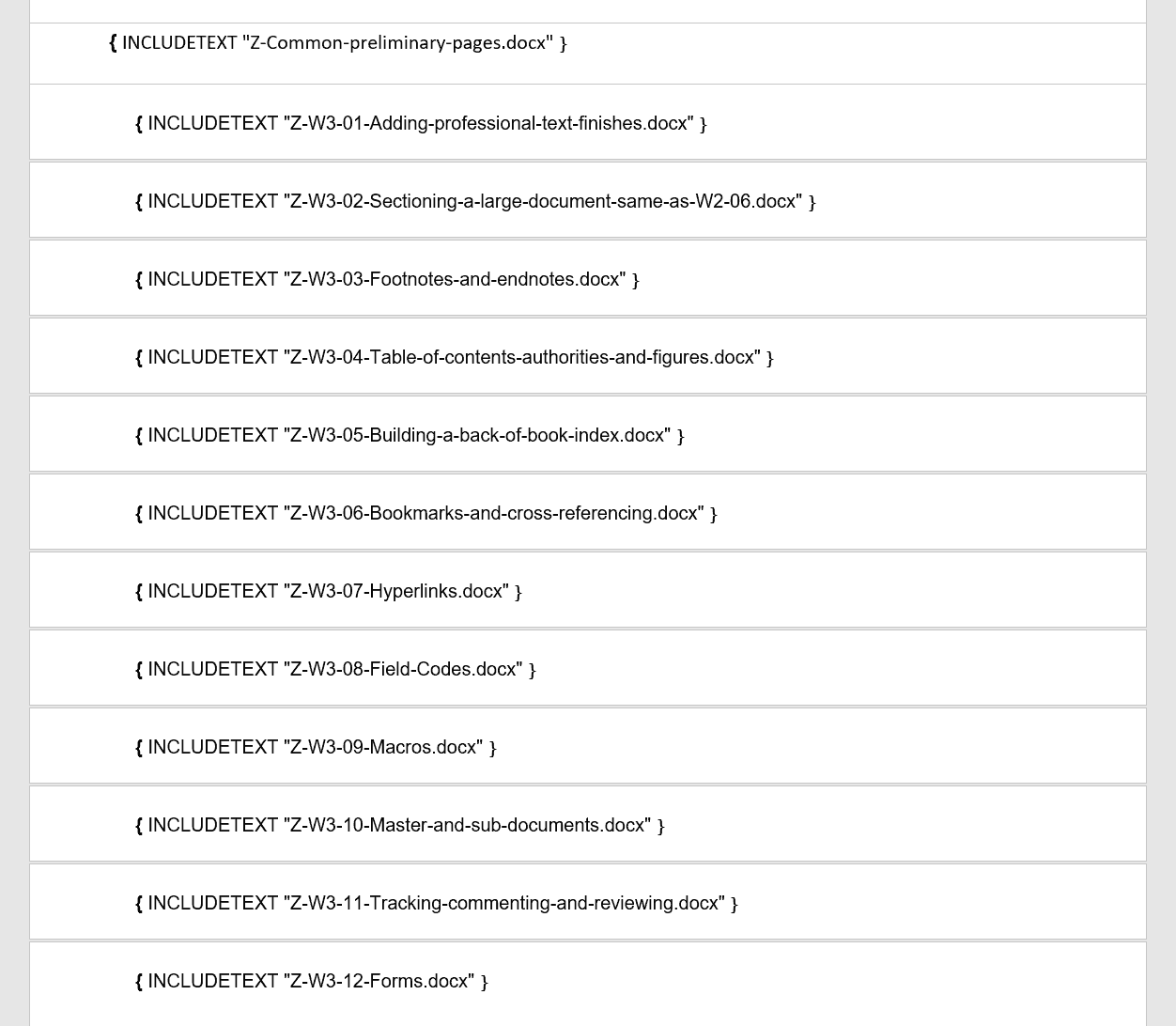
Each INCLUDETEXT entry points to a different chapter. Each chapter is a Word subdocument stored in the same folder as the master document.
The single line between the first two INCLUDETEXT entries represents a page break so the content on the second subdocument continues on the page directly after the first subdocument.
The double line between the second and third INCLUDETEXT entries represent a section break. For consistency, I always start a new chapter on the next odd page (the right-hand page on a 2-page spread), regardless of whether the current chapter finishes on an odd or even page.
Clicking the pilcrow icon (the one that looks like a backward P) on the Home ribbon, reveals the hidden formatting and clearly shows what kinds of break exist between each INCLUDETEXT field.

To remove the white space to get the condensed view:
1Click on the gap between two pages to set the focus.
2Double-click again to remove or add the white space.

2. How to Insert an INCLUDETEXT Field in a Master Document
Microsoft Word fields are always enclosed with braces { }. You cannot simply type these. Rather you must press Ctrl F9 (Fn Ctrl F9 on some keyboards) or insert a field from the Quick Parts feature.
1Click the Insert tab.
2Click the Quick Parts icon on the far-right side of the Insert ribbon.

3Select Field towards the bottom of the menu. The Field dialog is displayed.
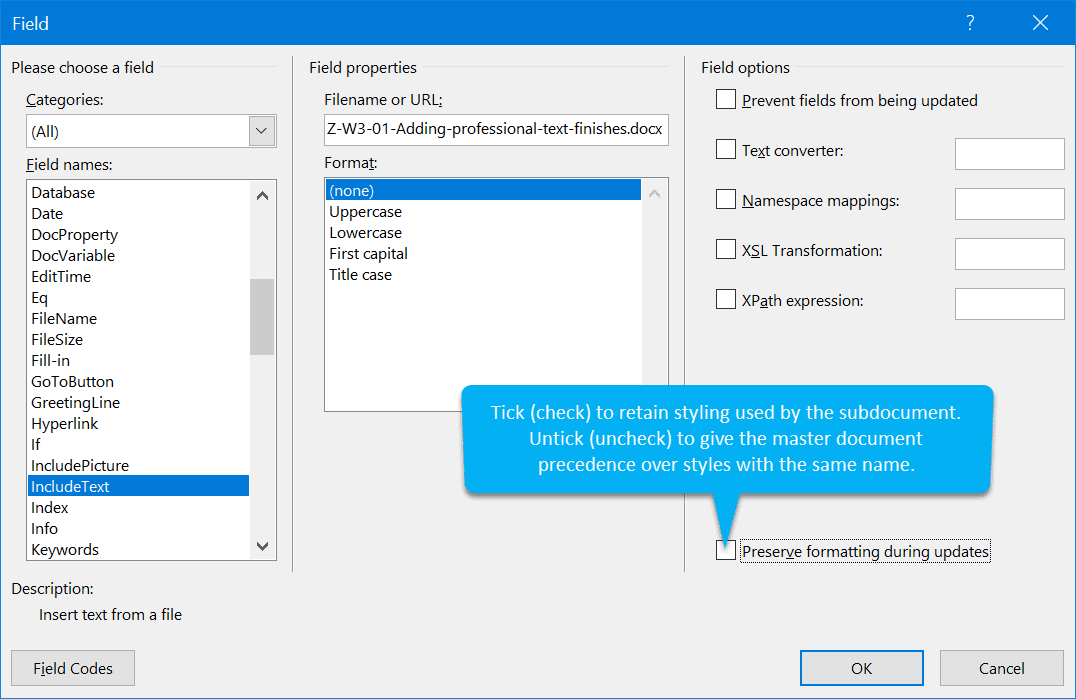
4From the Field Names list, choose INCLUDETEXT.
5In 99% of cases the default field options can be left.
6However, the Preserve Formatting During Updates checkbox could be important.
- If your Word subdocuments have a variety of styles and formatting that bear no resemblance to those of other subdocuments, then tick (check) this box to retain the styling This will add a * MERGEFORMAT switch like this.

- If you wish to style all Word subdocuments consistently using a central set of styles within the master document, then leave the checkbox unticked. This means the *MERGEFORMAT switch will not be added. If the subdocument and master document have styles with the same names, the master document now takes precedence. I would recommend this approach. It’s what I use.

3. How to Toggle the INCLUDETEXT Field with Its Content
To toggle one INCLUDETEXT field to show the Word subdocument content (or vice versa):
1Place the cursor inside the braces. Grey shading will appear behind the text. This tells you that Word controls the content, not you!
2Press Alt F9 (Fn Alt F9 on some keyboards).
To toggle all INCLUDETEXT field to show the subdocument content (or vice versa):
1Press Ctrl A to select the entire document content.
2Press Alt F9 (Fn Alt F9 on some keyboards).
4. How to Update a Master Doc With Changes to a Sub-Doc
To toggle all INCLUDETEXT field to show the Word subdocument content:
1Press Ctrl A to select the entire document content.
2Press F9 (Fn F9 on some keyboards).
5. How to Remove INCLUDETEXT Fields From a Master Document
Sometimes you need to convert your master document Word structure back to a single document by removing INCLUDETEXT fields while keeping the content.
1Press Ctrl A to select the entire master document content.
2Press F9 (or Fn F9)to update all Microsoft Word fields and display the content from the Word subdocuments.
3Press Ctrl Shift F9 (or Fn Ctrl Shift F9) to unlink all fields and convert them to static text.
4Save the document with a new filename to preserve your original INCLUDETEXT field structure.
This process creates a standalone document with all Word subdocument content permanently embedded, removing the dynamic linking functionality.
6. Best Practices for Managing Master Documents
Managing a master document effectively in Word requires careful planning and consistent file management strategies.
File organisation and naming conventions
Store all Word subdocument in the same folder as your master document. Use descriptive filenames that include chapter numbers or section identifiers, such as “01-Introduction.docx” or “Chapter-02-Methods.docx”. This naming convention makes it easier to identify and organise your INCLUDETEXT field references.
Version control workflow
Create a backup copy of your master document before making significant changes. Use file versioning by adding dates to filename, such as “Master-Document-2025-01-15.docx”. This approach protects your work and allows you to revert changes if needed.
Style template management
Create a master style template that all Word subdocuments can reference. This ensures consistent formatting across your entire document structure when using Microsoft Word field without the MERGEFORMAT switch.
7. Choosing Between INCLUDETEXT and Other Word Fields
Understanding how INCLUDETEXT field compares to other Microsoft Word field helps you choose the right automation tool for your document needs.
INCLUDETEXT vs TOC field
While the TOC field generate a table of contents from the heading styles, the INCLUDETEXT field imports the entire document content. Use TOC for navigation and INCLUDETEXT for content aggregation in your master document.
INCLUDETEXT vs REF field
The REF field references specific bookmarked content within the same document, whereas INCLUDETEXT field draws its content from an external Word subdocument. Choose REF for internal cross-references and INCLUDETEXT for multi-file document management.
INCLUDETEXT vs INCLUDEPICTURE field
The INCLUDEPICTURE field links to an external image, while INCLUDETEXT field links to a text document. Both support automatic updating, making them powerful tools for maintaining dynamic content in your master document Word structure.
8. INCLUDETEXT Field Options and Switches
Master document power users can leverage the INCLUDETEXT field switches and options for enhanced document automation.
MERGEFORMAT switch usage
The MERGEFORMAT switch preserves formatting from the source Word subdocument. Use this when each subdocument requires unique styling that differs from your master document template.
Range specification option
Specify a bookmark range within INCLUDETEXT field to import only specific section of a Word subdocument. This technique allows precise content control: { INCLUDETEXT “Chapter1.docx” MyBookmark }.
Text conversion switches
Use text filter switches to import content from non-Word formats. The Microsoft Word field system supports various text conversion option for different file types within your master document Word workflow.
9. Troubleshooting Steps
10. Frequently Asked Questions (FAQs)
11. Summary
Creating a master document setup in Word using the INCLUDETEXT field provides a fantastic solution for managing a large, complex document. This approach offers significant advantages if you work within a team. The end result will look much more cohesive and you’ll finish quicker.
There are 73 other Microsoft Word fields to explore too, so that should keep you busy for a while!
Check out this alternative method that builds a master Word document from multiple subdocuments.
Shhh! Keep this to yourself but Jason is the guy they sneak in the back door to fix Microsoft 365 disasters when all else has failed. He's quite the straight shooter, breaking things down into simple steps and giving you advice you can actually use.
Yes, he takes on client projects and 1:1 troubleshooting so if you would like to finally get that project finished - you know the one - then go ahead - just reach out.


4 responses to “Create Master Document Word Files Using INCLUDETEXT Fields”
Is there a way to get Word to automatically update Include Fleder before printing? I have the same include in many documents and would like to avoid having to manually update each document after changing the include. On the one hand, this would save time and, on the other hand, avoid forgetting a document and printing out outdated information.
Yes. Press Ctrl A to select the whole document then press F9 to update everything.
Depending on your keyboard setup you may need to press Fn F9.
I’m curious if there is a way to comment on specific text that is added to a document using the INCLUDETEXT field without commenting on the originating document from which this text is drawn. Currently, when I comment, the entire text block is referenced and the comment appears all the way at the top. This is problematic if the text block is several pages long.
The idea of INCLUDETEXT is to insert completed subdocuments, lock, stock and barrel.
Any subsequent comments added to the actual sub-document will appear in the master document, once the INCLUDEFIELD is updated.
However, any comments (or replies to comments) made to the subdocument content from within the master document are not saved, so you will lose them once the master document is closed.
An alternative approach is to use the *master and sub-document approach* which allows you to add or reply to comments from within your master document or in the open sub-document.
https://officemastery.com/master-document-multiple-subdocuments-word/