

Knowledge base
Add or Remove Watermarks in Word – Here’s How
Add a watermark in Word (text watermark or image watermark) and edit as required. Conversely, see how to remove watermarks in Word (common problem).

First published: 11-May-2020
Last updated: 10-Nov-2025
4 min read

A Microsoft Word watermark is an image or item of text that appears in the background on every page, behind the text and often full-page height.
In the old days, you could buy watermarked paper from a stationer. The watermark was often an indication of status, e.g. Basildon Bond is a high-quality brand of stationery.
You can create a pre-designed document background watermark with a single click and a custom watermark with just a little more effort. You can use text or images as a watermark.
This post covers both basic and advanced techniques to add watermark Word designs to your documents.
Mastering Microsoft Word watermark techniques has the following benefits:
- Establish professional branding. Add your company logo or confidentiality notices to every page automatically, creating consistent, polished documents that reinforce your brand identity.
- Protect your content. Clearly mark documents as drafts, confidential or copyrighted, deterring unauthorised use and making document status immediately obvious to anyone who views them.
- Save time with templates. Set up watermarks once and apply them instantly across multiple documents, eliminating repetitive formatting tasks and ensuring consistency across all your work.
- 1. How to Add a Watermark in Word (Standard)
- 2. How to Add a Watermark With Custom Text
- 3. How to Add a Watermark in Word Using Your Own Image
- 4. How to Edit a Microsoft Word Watermark
- 5. How to Remove Watermarks in Word Documents
- 6. How to Add a Watermark to Create a Side Banner
- 7. Troubleshooting Watermarks
- 8. Frequently Asked Questions (FAQs)
- 9. Summary
1. How to Add a Watermark in Word (Standard)
1Select the Design tab to access Word’s watermark design features.
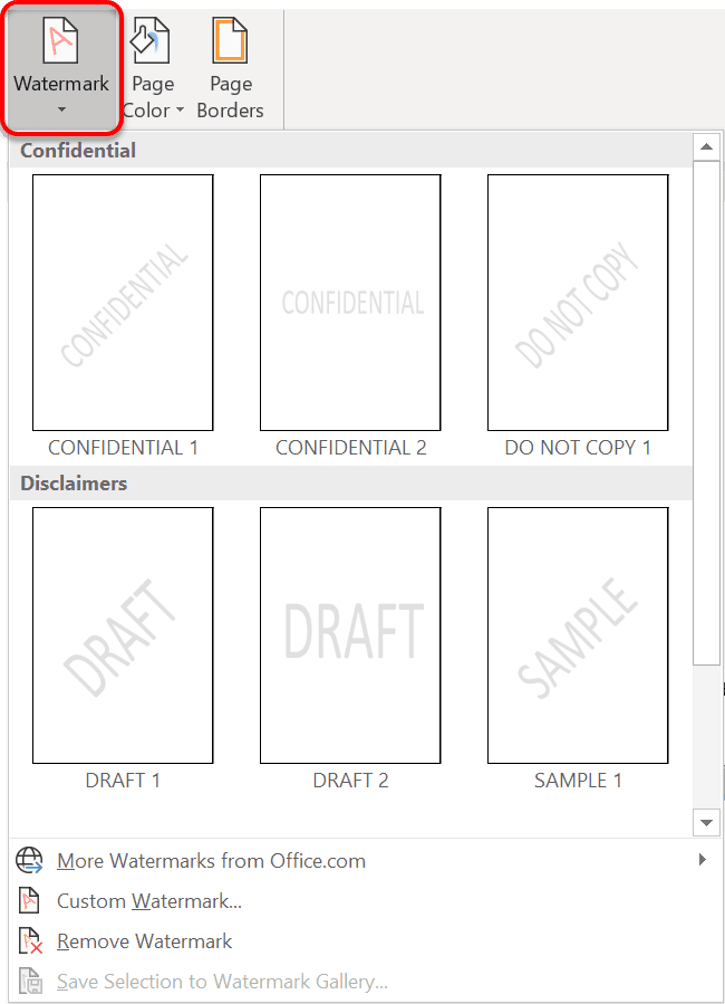
2Click the Watermark icon in the Page Background group to access all watermark options.
3Choose one of the pre-set designs in the gallery. The watermark is added instantly to the pages in the current document.
2. How to Add a Watermark With Custom Text
1Select the Design tab.
2Click the Watermark icon in the Page Background group.
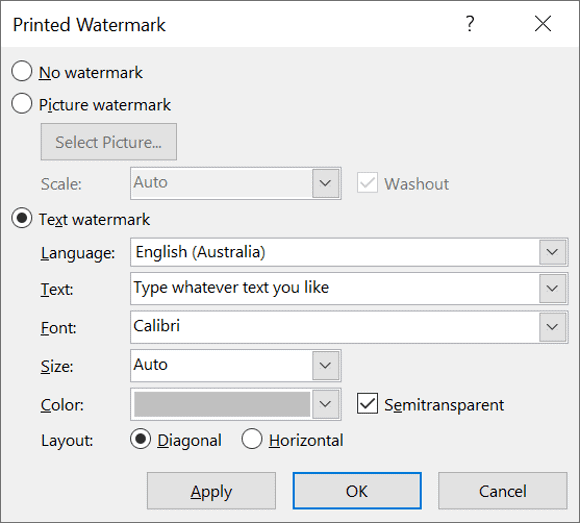
3Choose Custom Watermark. The Printed Watermark dialog box is displayed.
4Choose the Text Watermark option.
5Enter your watermark text in the Text box and choose the font, size, colour and direction of the text. Leave the Semitransparent tick box ticked.
This custom watermark approach gives you complete control over appearance and positioning.
3. How to Add a Watermark in Word Using Your Own Image
1Select the Design tab.
2Click the Watermark icon in the Page Background group.
3Choose Custom Watermark. The Printed Watermark dialog box is displayed.
4Choose the Picture Watermark option to add your custom image watermark.
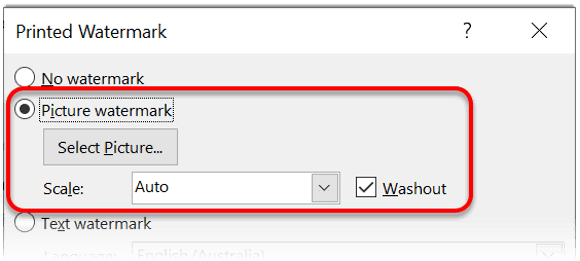
5Click the Select Picture button.
6Locate and select your image.
7Tick the Washout box if you want.
8Choose a Scale option to resize the image if you want.
9Click OK.
4. How to Edit a Microsoft Word Watermark
1Double-click inside the header or footer area.
2Select the Design tab under the Header & Footer Tools banner if necessary.
3Untick the Show Document Text option in the Options group.
4The watermark image or text (WordArt) can now be selected, resized or manipulated in any way you want.
5Click the Close Header and Footer icon in the Close group.
5. How to Remove Watermarks in Word Documents
1Select the Design tab.
2Click the Watermark icon in the Page Background group.
3Choose Remove Watermark to delete the watermark completely.
6. How to Add a Watermark to Create a Side Banner
Beyond traditional watermarks, Word’s design features offer creative alternatives for document backgrounds.
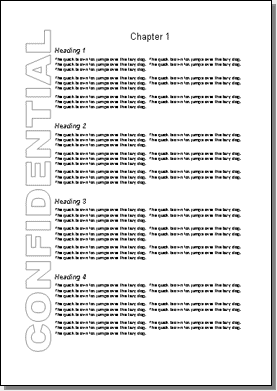
Sometimes, rather than a traditional watermark, you may wish to add a banner down one side of the document as an alternative Word formatting technique on every page. The technique is similar to adding a watermark, but everything is done through the header and footer.
1Double-click inside the header area of the page (the top margin area).
2Select the Design tab under the Header & Footer Tools banner if necessary.
3Untick the Show Document Text option in the Options group.
4Insert a WordArt with the required text.
5Rotate the text 90 degrees to display it vertically.
6Stretch the WordArt image to full page height and position to the left or the right side of the page.
7Using the WordArt tools, set the Word Wrapping to Square. This prevents the document text from overlapping the WordArt text.
8Click the Close Header and Footer icon in the Close group.
7. Troubleshooting Watermarks
8. Frequently Asked Questions (FAQs)
9. Summary
The Microsoft Word watermark feature provides easy and professional branding options. You can quickly apply standard or custom watermarks (text or picture watermarks) and customise their appearance. The Design tab’s Watermark tool makes it simple to add, edit or remove watermarks in Word.
For creative alternatives, try vertical side banners using WordArt through headers and footers. Remember that watermarks appear behind all content, print reliably and convert to PDF seamlessly.
Here are some other advanced Microsoft Word text effects and formatting you may be interested in.
Shhh! Keep this to yourself but Jason is the guy they sneak in the back door to fix Microsoft 365 disasters when all else has failed. He's quite the straight shooter, breaking things down into simple steps and giving you advice you can actually use.
Yes, he takes on client projects and 1:1 troubleshooting so if you would like to finally get that project finished - you know the one - then go ahead - just reach out.


2 responses to “Add or Remove Watermarks in Word – Here’s How”
Didn’t follow this at all. Which version of word are you working with? I don’t see anything that tells us that. I would have thought that it would be important to say which versions your description works with.
Hi Vic
The watermark has been part of Microsoft Word’s feature set since 2002. However, there are two very different versions of Microsoft Word – the desktop app and the web app.
The desktop app has to be downloaded and contains the full feature set including the Watermark.
The web app is accessed via your browser (office.com) and is a mickey-mouse version of Word that contains a very basic feature set that does not include the Watermark.
I hope that clarifies the situation.