

Knowledge base
How to Add Drop Caps, Kerning and Other Text Effects in Word
Discover how to apply professional text effects in Word including character spacing, kerning, drop caps, superscript and subscript, ligatures and visual separators

First published: 06-May-2020
Last updated: 09-Feb-2026
9 min read

This post shows you how to enhance your Word document by taking advantage of some little-known text effects including hidden gems like character spacing and stretching (great for titles), kerning, drop caps, superscript and subscript, ligatures and visual separators.
Mastering these text effects in Word has the following benefits:
- Create more polished, professional-looking documents that go beyond basic formatting and make a stronger impression on readers.
- Save time by using keyboard shortcuts and automated features like kerning, ligatures and drop caps that enhance readability.
- Control your typography to match brand guidelines, publication standards or achieve specific visual effects in your documents.
- Fantastic for reports, white papers, newspapers, newsletters, magazines, academic papers and marketing materials.
The key is restraint. Apply these effects purposefully rather than using them all at once, which can make documents look cluttered and unprofessional.
Related post: How to create watermarks and sidebars
- What are superscript and subscript and where is the setting in Word?
- How to make letters wider/narrower and add/remove space between letters in Word
- How to raise or lower text to position it more naturally in Word
- What is kerning and where is the option in Word?
- How to apply ligatures and stylistic effects in Word
- Working with old conventions: How big is a point?
- How to use drop caps in Word
- How to insert quick visual separators in Word (Keyboard)
- more visual separators for those who like control
- How to remove text effects in Word
- Troubleshooting advanced text formatting
- Frequently Asked Questions
- Key Takeaways
What are superscript and subscript and where is the setting in Word?
Superscripted text is smaller than the text around it and is raised above the baseline. For example:
- 16th September
- 360o
- 42
Subscripted text is smaller than the text around it and sits below the baseline. For example:
- H2O
- CO2
To apply superscript or subscript, first select the text then use one of these 3 methods.
Method 1: Use the ribbon Icons
1Select the Home tab.
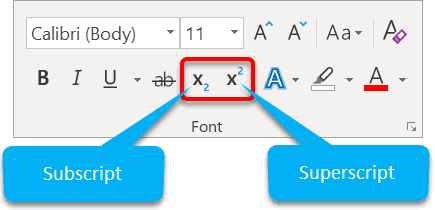
2Click the Superscript or Subscript icons in the Font group.
Method 2: Use Font Effects
1Select the Home tab.
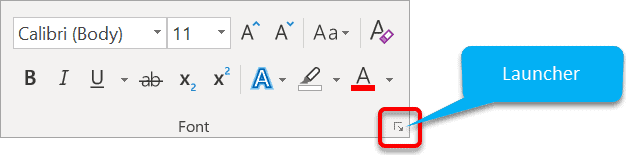
2Click the launcher icon in the bottom-right corner of the Font group.
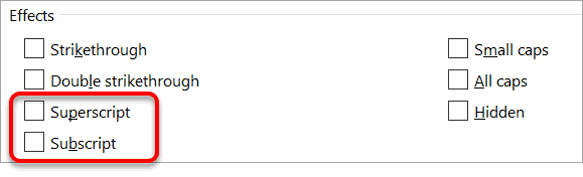
The Font dialog box is displayed. The Text Effects occupy the lower half of the box. Superscript and Subscript are two of the options.
Method 3: Use a shortcut key
The keyboard shortcut to superscript text is Ctrl Shift +
The keyboard shortcut to subscript text is Ctrl +
How to make letters wider/narrower and add/remove space between letters in Word
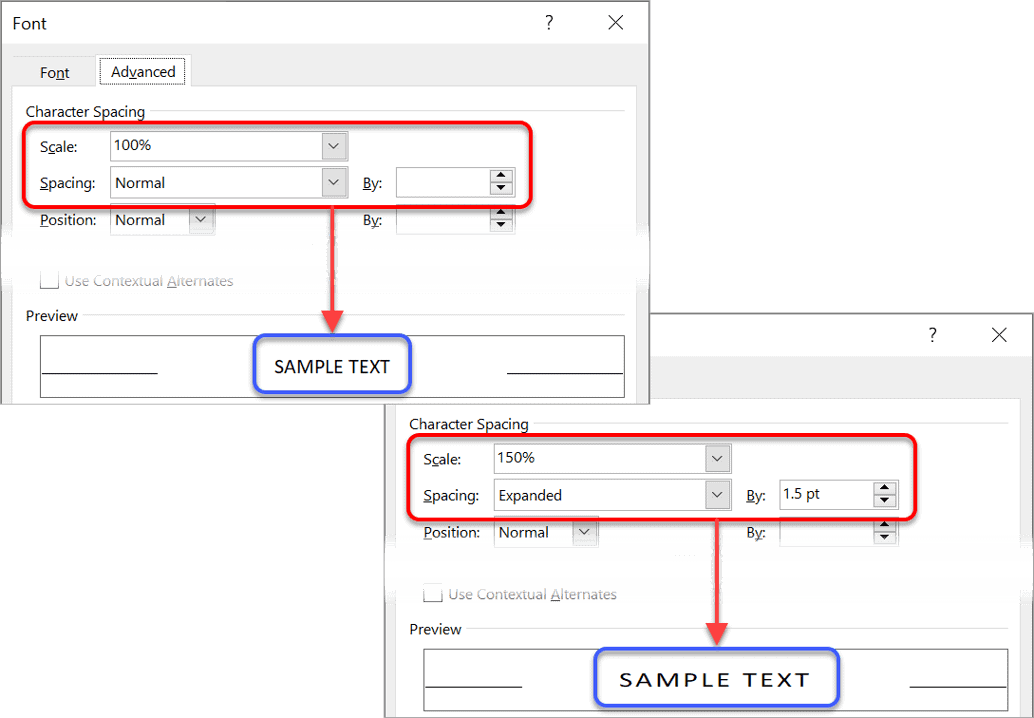
When creating a title, most people simply choose a large font size. While this is okay, as far as it goes, you can add a touch of professionalism by stretching or spacing the text. Both are found in the same dialog box.
1Select the text.
2Select the Home tab.
3Click the launcher in the bottom-right of the Font group. The Font dialog box is displayed.
4Select the Advanced tab.
How to make letters wider
Click the Scale drop-down arrow and choose a larger percentage, or simply type the percentage you require. 100% is normal width, 200% is double width and so on.
How to make letters narrower
Enter a smaller percentage in the Scale box. For example, 75% will compact the width to ¾ of normal size.
How to add extra space between letters (characters)
1Choose Expanded from the Spacing drop-down list.
2Enter a point size in the By box. For example, if you are using font size 20 and you expand the spacing by 10 points, you will add half a character width between each letter.
How to make letters closer
1Choose Condensed from the Spacing drop-down list.
2Enter a point size in the By box.
How to raise or lower text to position it more naturally in Word
Some fonts are naturally positioned higher than others. When you are mixing fonts or small graphics together the positioning might look awkward.
For example, in my training guides, keystrokes or button images are used a lot.
Here is a sample sentence. Notice how the bottom of TAB and ENTER are aligned to the baseline of the text.

After lowering TAB by 3pt and lowering ENTER by 5pt, here is the result. Notice how it flows more naturally.

To reposition text in relation to the baseline:
1Select the portion of text you want to reposition.
2Select the Home tab.
3Click the launcher in the bottom-right corner of the Font group.
4Select the Advanced tab.
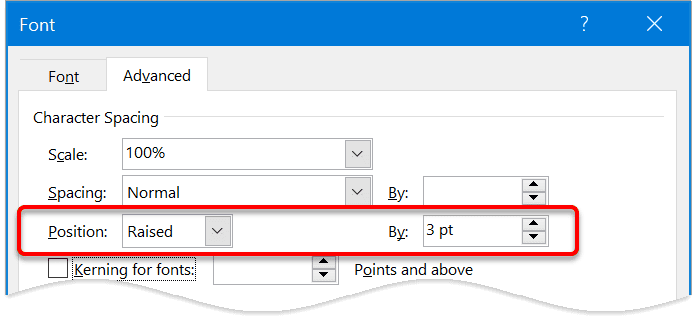
5On the Position row, nudge the By arrows up or down. When you increase the By value, Position will switch to Raised. When you decrease the By value, Position will switch to Lowered.
What is kerning and where is the option in Word?
Kerning is a technique that was introduced with the printing presses in the 1800s. It recognises particular pairs of letters and positions them in such a way to make reading easier.
For example, an upper case ‘T’ followed by a lower case ‘i’ is kerned so that the ‘i’ almost sits underneath the bar of the ‘T’, rather than beside it.
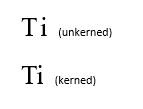
Not every pair of letters should be kerned but there are hundreds of character pairs that are kerned by professional publishers and printers.
Word knows what to do. You just need to switch kerning on.
1Select the text that you wish to kern (normally the whole document).
2Select the Home tab.
3Click the launcher in the bottom-right of the Font group. The Font dialog box is displayed.
4Choose the Advanced tab.
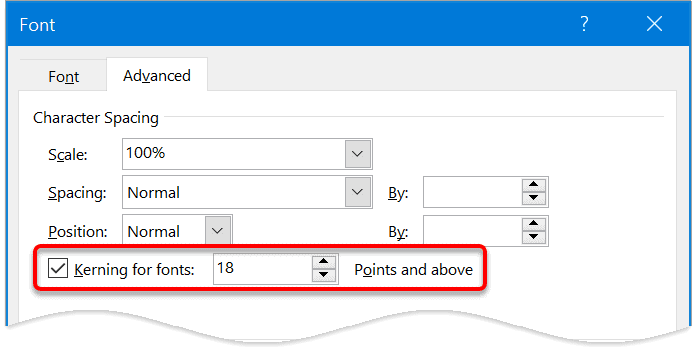
5Tick the box labelled Kerning for fonts.
6Specify a font size to be used as the cut-off point for the kerning. Any text of the specified point size and above will be kerned.
How to apply ligatures and stylistic effects in Word
Ligatures are two or more characters that are formed into a single character in order to create more readable or attractive text. Open Type fonts support four types of ligatures:
- Standard ligatures. Designed to enhance readability. Standard ligatures include “fi”, “fl” and “ff”.
- Contextual ligatures. Designed to enhance readability by providing better joining behaviour between the characters that make up the ligature.
- Discretionary ligatures. Designed to be ornamental and not specifically designed for readability.
- Historical ligatures. Designed to be historical and not specifically designed for readability.
Modern Open Type fonts may come with a variety of stylistic sets available, but you often have to invest some time finding a good one. They may also come with different number-spacing options and number-form options.
Here is a sample of different combinations using the Gabriola font.
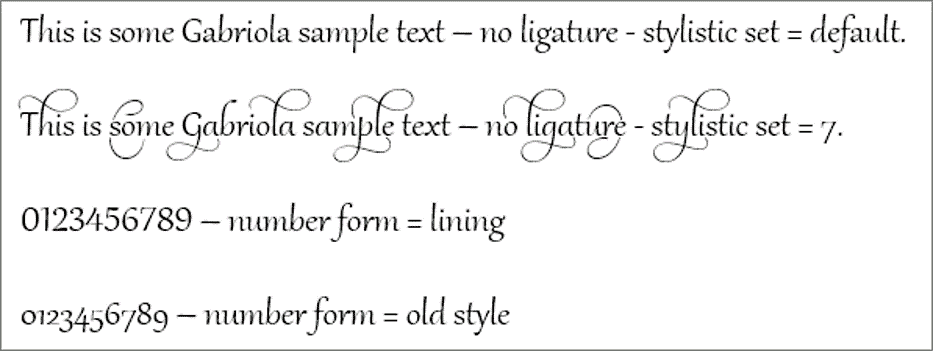
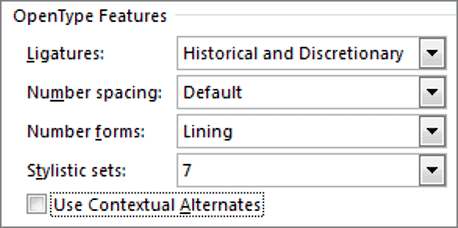
To experiment with ligatures, number-spacing, number-forms and stylistic sets:
1Select the document text that you want to format.
2Select the Home tab.
3Click the launcher in the bottom-right of the Font group. The Font dialog box is displayed.
4Choose the Advanced tab.
5Select an option from each of the drop-down lists.
Working with old conventions: How big is a point?
Whenever you see a reference to font size, it is specified in points, e.g. font size 10, font size 12. What is ‘point size’? How big is a point? Again, this is a historical convention that dates back to the 1800s.
There are 72 points in one inch.
Therefore, if you are using font size 12, the text size is 12/72 of an inch high when it is printed.
Put another way, 1 inch contains exactly 6 lines of size 12 text (6 x 12 = 72).
You never know when a fun fact like that might pop up in pub trivia quiz.
How to use drop caps in Word
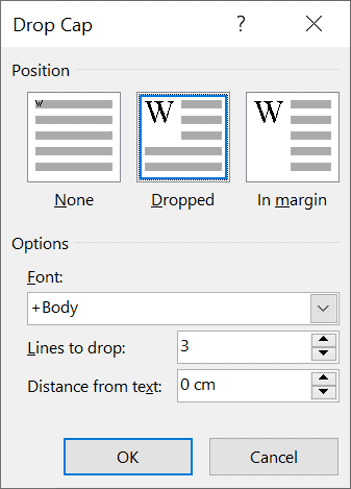
A drop cap is where the first letter of the first word in the first paragraph is enlarged. A drop cap is usually added at the beginning of a new chapter or section.
This grabs the reader’s attention and guides them to the beginning of the text.
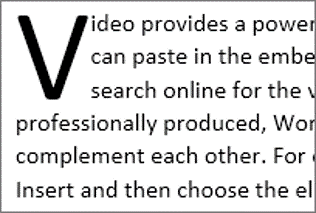
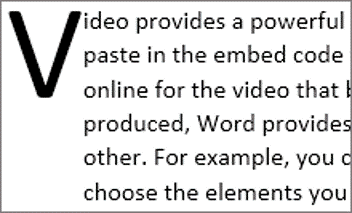
Drop caps are used in most novels and can easily be added to add a touch more professionalism to your document.
1Select the Insert tab.
2Click the Drop Cap icon.
3Choose the Dropped style or the In-Margin style.
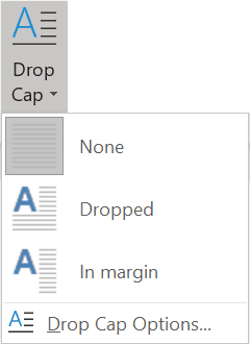
To change the settings, e.g. how many lines the drop cap should cover, click the Drop Cap Options in the menu.
How to insert quick visual separators in Word (Keyboard)
Type 3 dashes ( — ) to display a single line separator

Type 3 equals signs ( === ) to display a double line separator

Type 3 hashes ( ### ) to display a triple line separator

Type 3 underscores ( ___ ) to display a thick separator

Type 3 asterisks ( *** ) to display a dotted line separator

Type 3 tildes ( ~~~ ) to display a wavy line separator

more visual separators for those who like control
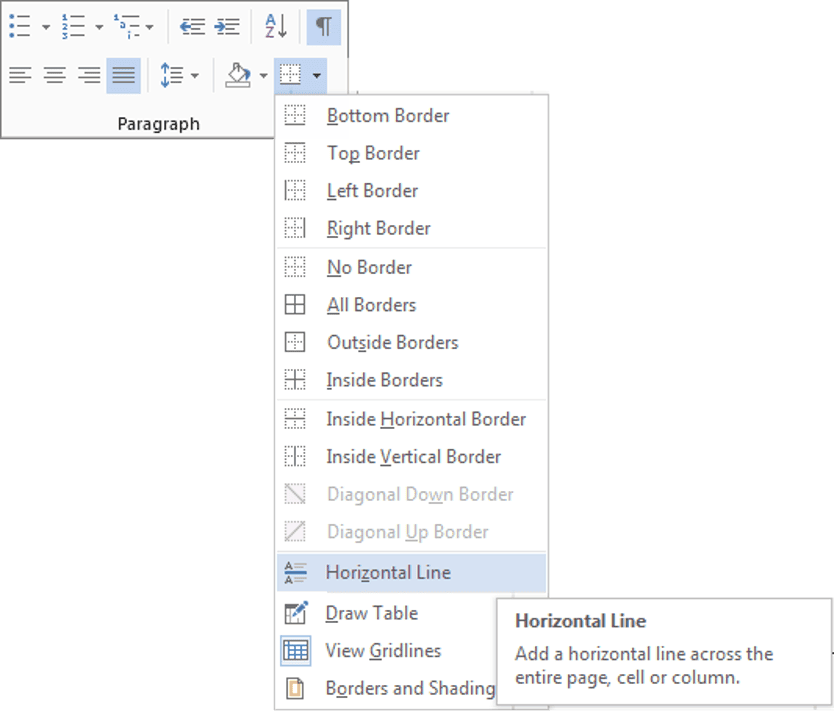
There is also a Horizontal Line tool you can use.
1Position the cursor where the line is to be inserted.
2Select the Home tab | Paragraph group, or Table Tools | Design tab (if you are working with a table).
3Click the drop-down arrow on the Border icon.
4Select Horizontal Line.
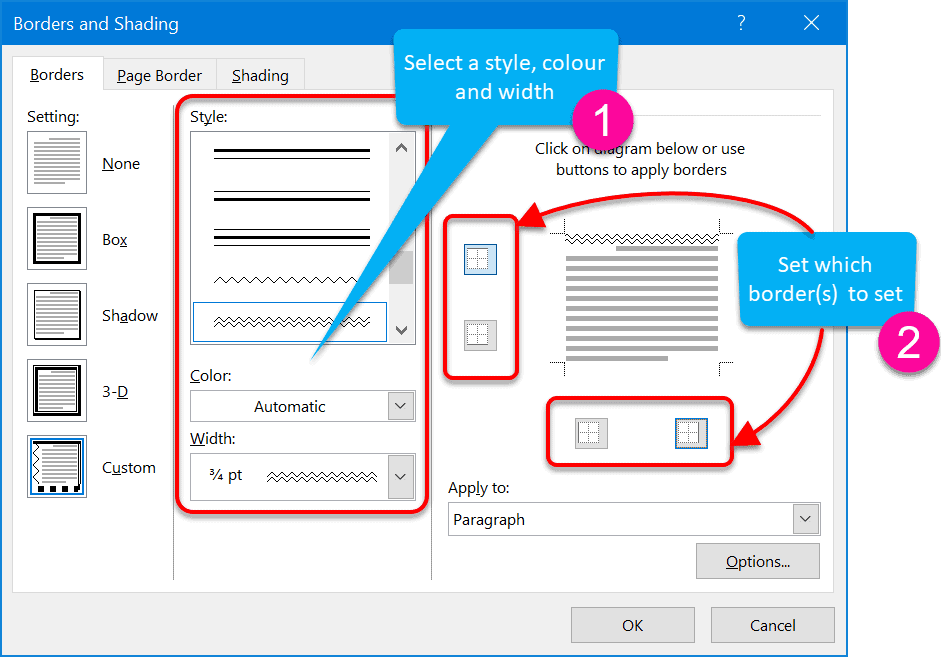
5For more choices, click Borders and Shading instead of Horizontal Line.
6Choose a line style, line colour and line width.
7Click the border icons around the preview so that only the top or bottom icon is on.
You may also be interested in: How to create watermarks and sidebars
How to remove text effects in Word
If you need to reverse or remove any of these text effects in Word, here’s what to do.
Remove superscript or subscript
Select the formatted text and click the Superscript or Subscript icon again to toggle it off. Alternatively press the same keyboard shortcut (Ctrl Shift + for superscript or Ctrl + for subscript).
Reset character spacing and scaling
Select the text, open the Font dialog box (Home tab > launcher icon), go to the Advanced tab and set Scale back to 100% and Spacing to Normal.
Remove text position adjustments
Select the text, open the Font dialog box, go to the Advanced tab and set Position to Normal.
Turn off kerning
Select the text, open the Font dialog box, go to the Advanced tab and untick Kerning for fonts.
Remove a drop cap
Click on the drop cap to select it, then go to Insert tab > Drop Cap icon and select None.
Delete visual separators
Position your cursor on the line containing the separator and press Delete or Backspace. For horizontal lines inserted via the Border tool, select the line and press Delete.
Troubleshooting advanced text formatting
Frequently Asked Questions
Key Takeaways
- Apply superscript text (e.g. 360o) or subscript text (e.g. H2O) by selecting the character(s) to format, displaying the Font dialog box and ticking Superscript or Subscript on the Standard tab.
- Use the Advanced tab of the Font dialog box to stretch, shrink, space out, compact and apply kerning to text for professional character spacing.
- Apply different ligatures, number-spacing, number-forms and stylistic sets for modern Open Type fonts to enhance typography.
- Remember there are 72 points in 1 inch of printed text.
- Add a drop cap in Word by selecting the Insert tab, clicking the Drop Cap icon and selecting a style.
- Create a single-line page separator by typing 3 dashes followed by space or Enter.
- Create a double-line page separator by typing 3 equals signs followed by space or Enter.
- Insert an HTML horizontal line separator by clicking the Border icon (of paragraph or table) and selecting Horizontal Line.
- Remove any text effect by selecting the formatted text and reversing the process used to apply it, such as toggling icons off or resetting values to Normal in the Font dialog box.
Shhh! Keep this to yourself but Jason is the guy they sneak in the back door to fix Microsoft 365 disasters when all else has failed. He's quite the straight shooter, breaking things down into simple steps and giving you advice you can actually use.
Yes, he takes on client projects and 1:1 troubleshooting so if you would like to finally get that project finished - you know the one - then go ahead - just reach out.


6 responses to “How to Add Drop Caps, Kerning and Other Text Effects in Word”
Thank you Jason. I learned a few things about kerning and ligatures. But, I had a question that I thought you may be able to help. I can’t seem to find the answer elsewhere online.
I have created a character style called “button” where the font has a border around the word. You have a similar effect in item #3 above, with your “Tab” and “OK” buttons and it appears perfectly. I can not get this effect and my buttons are squished closed to the border.
So, my question is, how do I “add space” both before the first character and after the last character (not in between the characters, as would be the case with expanded font spacing). My style shows the left border nearly on top of the first character and I’d like maybe 3 or more spaces in advance so that the word is properly centered on the button.
Any help would be great. Thanks.
TC
PS: I can “hack” this by manually “adding extra spaces” as needed. But, then MS Word thinks there is a spelling error. I’m looking for a way to change the font style so that it happens automatically when the character style is changed.
Hi TC. Okay, first, let me deliver the bad news before I make a couple of suggestions.
The effects you see in point #3 above were created like this. The Tab was created by downloading a free Keystroke font then inserting the appropriate symbol from that font. The OK button is a screen capture directly from the Word dialog box. The sentence you see boked in point #3 above is a quick screenshot of the finished sentence from the document.
Unfortunately, you cannot create a style to add a box around a word or phrase. The character styling applies to the individual characters. The paragraph styling is what you need to add a border and control the indentation (which would be used for padding within your button). So it’s not a solution.
The closest thing I can come up with is this (and I hesitate because it’s not simple, neat or scaleable and takes a bit of time to set up):
1. Insert a textbox or a rounded rectangle, whatever takes your fancy. Draw the shape and type your text. Format the border and colours as necessary.
2. Click the text Wrap icon on the shape. If you choose ‘In line with text’ you can insert it inline, but it sits on the baseline and looks rubbish. If you choose ‘Tight’ you can move it wherever you want within your text but you’ll probably have to increase your
line spacing significantly so that it doesn’t look out of place.
You also cannot reduce the spacing between the border of the button and the text. To get around this:
1. Draw a button using a shape from the shapes gallery.
2. Draw a text box and type your text.
3. Superimpose the text on top of the button. Because they are separate, you can create a much narrower button.
4. Using your screen capture tool of choice (I recommend and use SnagIt), select the finished button.
5. Insert into your document text.
6. Set the text Wrap to ‘In line with text’.
7. Raise or lower the text as necessary, and change the line spacing if necessary to make it look natural.
There are also a ton of tools on the web such as https://www.clickminded.com/button-generator/ which I found with a quick web search for ‘text button graphic creators’. Type your text, choose your settings and click Download. This will save you time on steps 1-4 above.
It’s a bit of work, but how much do you want it!?
I hope this helps. Let me know how you go.
Jason
Many thanks for responding and taking the time to provide me with options. Using the text boxes seem like it would be clunky. I will check out the link you provided and see if there are other options. One idea I did think of was to “create a new font” that would include that padding/indent with the character. That would be time consuming to invent and would only work for that particular font style.
Thanks again.
TC
A font is a set of individual characters so unless you want every letter to be padded and boxed, realistically it’s not a viable option. Not to mention it takes a high level of skill and a big time commitment to design a font. Your intention was to find a quick and simple solution! I love your thinking though!
Thank you, Jason. I’ve been using MS-Word for decades, but I have never before used the “Ligatures and stylistic effects”… It made a huge difference!!
Yes, they’re hidden away and not everybody needs them, but they are worth exploring.