

Knowledge base
Superscript and Subscript in Microsoft Word (Step-by-Step)
Discover how to add superscript and subscript formatting in Microsoft Word. Make your dates, equations, formulas, citations and chemical symbols look professional. My troubleshooting and FAQs address all common problems.

First published: 06-May-2020
Last updated: 22-Oct-2025
2 min read
In this post you’ll discover the power of Microsoft Word’s SUPERSCRIPT and SUBSCRIPT formatting tools and how they can add that finishing touch to your Microsoft Word document formatting.
Mastering Microsoft Word superscript and subscript formatting has the following benefits:
- Professionally-presented documents – Your mathematical equations, chemical formulas, and citations will look sleek and polished.
- Enhanced readability – Important notations like dates, degrees, formulas and chemical symbols are immediately recognisable
1. What is Superscript and where would you use it?
Superscripted text is smaller and sits above the baseline, e.g.
- 16th September
- 360o
- 42 (Microsoft Word equations)
2. What is Subscript and where would you use it?
Subscripted text is smaller and sits below the baseline, e.g.
- H2O
- CO2
3. How to apply superscript or subscript
First select the text to superscript or subscript then use one of these 3 methods.
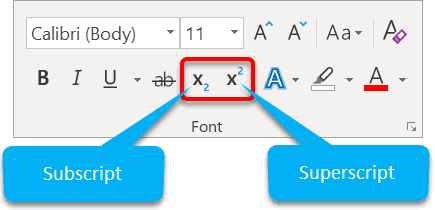
Method 1: Use the font-formatting icons on the Home ribbon to apply superscript or subscript
1Select the Home tab.
2Click the Superscript or Subscript icons in the Font group.
Method 2: Check the super/subscript boxes in the Font dialog
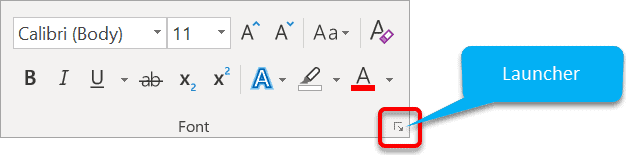
1Select the Home tab.
2Click the launcher icon in the bottom-right corner of the Font group.
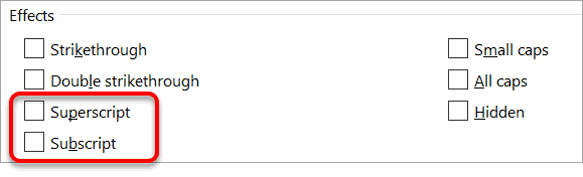
The Font dialog box is displayed. The Text Effects occupy the lower half of the box. Superscript and Subscript are two of the options.
Method 3: Use keyboard shortcuts to apply superscript or subscript
- The superscript shortcut in Microsoft Word is Ctrl + Shift + ‘+’.
- The subscript shortcut in Microsoft Word is Ctrl + ‘+’.
5. Troubleshooting Steps
6. Frequently Asked Questions (FAQs) about Superscript/Subscript
7. What next?
Do you want to explore this further? Here are some additional advanced text effects you may interest you.
Shhh! Keep this to yourself but Jason is the guy they sneak in the back door to fix Microsoft 365 disasters when all else has failed. He's quite the straight shooter, breaking things down into simple steps and giving you advice you can actually use.
Yes, he takes on client projects and 1:1 troubleshooting so if you would like to finally get that project finished - you know the one - then go ahead - just reach out.