

Knowledge base
How to Count Cells in Excel Using 4 Super-Easy COUNT Functions
How to count cells in Excel depends on what you need. Discover when to use COUNT vs SUM and master COUNTA, COUNTBLANK and COUNTIF to count exactly what matters in your spreadsheets.

First published: 25-Feb-2015
Last updated: 02-Feb-2026
4 min read

How do you select to right way to count cells in Excel without wasting precious time going down the wrong path? When should you use COUNT instead of SUM? And when do COUNTA, COUNTBLANK and COUNTIF enter the mix?
Keep reading and I’ll explain it all.
- 1. What Is the difference between SUM and COUNT?
- 2. Introducing COUNT, COUNTA, COUNTBLANK and COUNTIF
- 3. Excel's COUNTIF Function: Count how many cells match what you are looking for
- 4. How to write your COUNT functions for quick changes
- 5. Troubleshooting Steps
- 6. Frequently Asked Questions
- 7. Key Takeaways
- 8. Summary
1. What Is the difference between SUM and COUNT?
SUM calculates a total for a number of cells or values. Use it to answer questions such as HOW MUCH? Or, WHAT IS THE TOTAL?
COUNT is used when your question is HOW MANY?
Consider the following data:
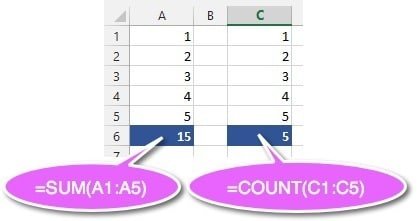
Cell A6 uses a SUM function to add up the values in cells A1 to A5.
Cell C6 uses a COUNT function to find how many cells in the range C1 to C5 contain numbers. The COUNT function ignores blank cells or cells that contain text or symbols.
2. Introducing COUNT, COUNTA, COUNTBLANK and COUNTIF
There are number of other Excel COUNT formulas available. Here’s a quick summary of what they do, followed by an example of each.
- Use COUNT to count how many cells in a range contain numeric data (numbers).
- Use COUNTA to count how many populated cells in a range (i.e. not blank).
- Use COUNTBLANK to count how many blank cells in a range.
- Use COUNTIF to count how many cells in a range meet a certain condition.
Consider the following data:
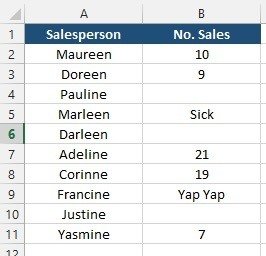
Here’s the results for each formula:
=COUNT(B2:B11)
Answer = 5.
=COUNTA(B2:B11)
Answer = 7.
=COUNTBLANK(B2:B11)
Answer = 3.
There is no single function that tells you the number of text cells but you can work it out with this formula:
=COUNTA(B2:B11)-COUNT(B2:B11)
This formula works by counting how many cells are populated (i.e. text and numeric data – of which there are 8), then subtracting the number of cells that contain numbers (5).
8-5=3 so there are 3 text cells.
3. Excel’s COUNTIF Function: Count how many cells match what you are looking for
To demonstrate the COUNTIF function Excel uses, consider the following data:
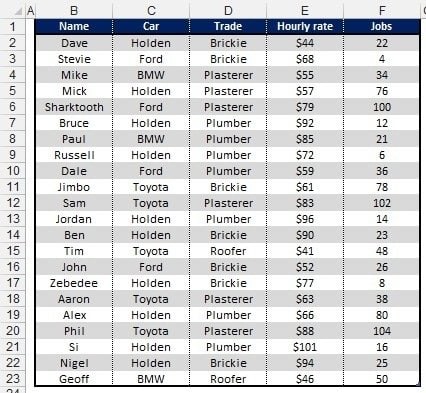
The COUNTIF function needs 2 bits of information – the lookup range, i.e. the range of cells to analyse – and the criteria, i.e. what it is that you’re checking for. The criteria is always encapsulated in double quotation marks (“) and is not case sensitive.
How many tradespeople drive a Toyota?
=COUNTIF(C2:C23,”Toyota”)
How many plumbers are there?
=COUNTIF(D2:D23,”Plumber”)
How many tradespeople charge more than $70 per hour?
=COUNTIF(E2:E23,”>70″)
How many tradesmen have a name that begins with a letter in the last half of the alphabet?
=COUNTIF(B2:B23,”>M”)
How many tradesmen’s names start with ‘J’?
=COUNTIF(B2:B23,”J*”)
How many tradesmen are a plumber or a plasterer?
=COUNTIF(D2:D23,”Pl*”)
4. How to write your COUNT functions for quick changes
Instead of typing criteria directly into your COUNT function Excel formulas, you can reference cells that contain your criteria. This makes your spreadsheets more flexible and easier to update.
For example, if you type “Toyota” into cell F1, then write the following formula into another cell:
=COUNTIF(C2:C23,F1)
This approach lets you change the criteria by simply updating the entry in cell F1, without having to edit the formula itself. As you grow more confident with Excel, you could create a simple dropdown list to select the vehicle from a list instead of typing it.
5. Troubleshooting Steps
6. Frequently Asked Questions
7. Key Takeaways
- Choose COUNT to count only numeric cells in your range while ignoring text and blank cells.
- Use COUNTA to count all populated cells regardless of whether they contain numbers, text or other data types.
- Apply COUNTBLANK to identify empty cells which is useful for finding missing data in your spreadsheets.
- Master COUNTIF function Excel for conditional counting based on specific criteria like values greater than a number or cells containing specific text.
- Remember SUM totals values while COUNT tallies quantities – choose based on whether you need ‘how much’ or ‘how many’.
8. Summary
Understanding how to count cells in Excel using the right COUNT function makes your data analysis faster and more accurate. COUNT handles numeric cells, COUNTA counts all populated cells, COUNTBLANK finds empty cells and COUNTIF function Excel uses lets you count based on specific criteria. Each serves a distinct purpose, and knowing when to use COUNT vs SUM – totalling versus counting – prevents common spreadsheet mistakes.
Shhh! Keep this to yourself but Jason is the guy they sneak in the back door to fix Microsoft 365 disasters when all else has failed. He's quite the straight shooter, breaking things down into simple steps and giving you advice you can actually use.
Yes, he takes on client projects and 1:1 troubleshooting so if you would like to finally get that project finished - you know the one - then go ahead - just reach out.
17 responses to “How to Count Cells in Excel Using 4 Super-Easy COUNT Functions”

Very helpful, thank you Jason
help me a lot, thank u so much
You’re welcome Zhou.
It appears double quotation marks are not needed if the criterion is a number in the COUNTIF function.
Hi Nick. Thank you for taking the time to comment. Yes, it’s true that you don’t need the enclosing quote marks if you are looking to match on an exact number. This is because ‘=’ is implied. For any other comparison (>, >=, <, <=, <>) the expression must be enclosed in double quote marks.
Jason, you are the best!
✌️ Thanks buddy.
wow so simple to understand thank you so much
You’re welcome Ifechukwu.
Very simple to understand. Thanks for helping with my studies!
No worries.
Thanks for the help Jason.
No worries Chukwuefe. I’m glad you found it useful.
Nice and easy to understand. Thanks for the explanation!
Thank you. You’re welcome.
Thanks, It was helpful
You’re welcome.


Leave a Reply
You must be logged in to post a comment.