

Knowledge base
Excel Custom Date Formatting Made Easy
Custom date formats in excel gives you complete control over how dates appear in your spreadsheets. Discover how to use simple placeholders to build any date format you want.

First published: 19-Jan-2015
Last updated: 28-Nov-2025
6 min read
Have you ever wondered how to display dates in a way other than the standard dd/mm/yyyy format? What about [todays_date format=”dddd, d, mmmm yyyy”]? Or simply [todays_date format=”mmmm yyy”]?
In addition to the standard date formats, you can create your own custom date formats to suit your needs exactly. That’s what this post is all about.
- 1. Different ways of showing the date
- 2. Which date format is best?
- 3. How to select a standard Excel date format?
- 4. How to construct an Excel custom date format
- 5. Placeholder breakdown for custom date formats
- 6. Write a formula to transform an existing date into a custom date format
- 7. How to remove a custom date format in Excel
- 8. How to use Format Painter to copy custom date formats
- 9. Troubleshooting steps
- 10. Frequently Asked Questions (FAQ)
- 11. Key takeaways
1. Different ways of showing the date
When you think about the variety of ways you can display a date – short, long, even the order and punctuation which can differ between countries, there are many possibilities. Here’s a sample:
- [todays_date format=”dddd, mmmm d, yyyy”]
- [todays_date format=”d/m/yy”]
- [todays_date format=”mm/dd/yyyy”]
- [todays_date format=”dd mmmm yyyy”]
- [todays_date format=”dd-mmm-yy”]
- [todays_date format=”mmm-dd-yy”]
The safest way to enter a date is to use slashes (/) as separators between day, month and year. When you do this, Excel will always convert to the default date format of [todays_date format=”d/mm/yyyy”].
Don’t separate date components in Excel using dots (periods). Excel will treat the first dot as a decimal point but when it encounters the second dot it will convert the whole date into text. That’s fine if you simply want to display the date, but if you need the date for a calculation, you’re out of luck.
2. Which date format is best?
That really comes down to the context in which the date is being used.
- The shortest format is single digit day, single digit month and 2 digit year, e.g. [todays_date format=”d/m/yy”].
- The fullest format is full day name and number, full month name and 4 digit year, e.g. [todays_date format=”dddd, d, mmmm yyyy”].
- The format with the most consistent width (which is good if you want a column of dates to look neat and easy to read) is 2 digit day, short month and 2 digit year, e.g. [todays_date format=”dd-mmm-yy”].
The choice is yours.
We’ll come on to how to create a custom date format in a moment. But first . . .
3. How to select a standard Excel date format?
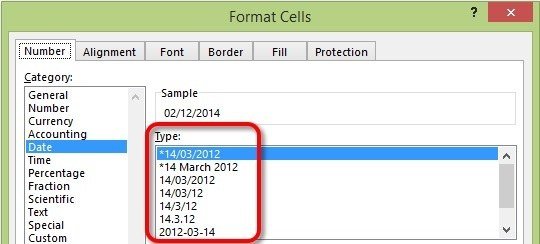
1Select the date cell(s).
2Press CTRL 1 (to display the Format Cells dialog).
3Click the Number tab, if necessary.
4The Date category should already be selected.
5Select a date format from the right hand list.
4. How to construct an Excel custom date format
Custom date formats in Excel are created using a system of placeholders.
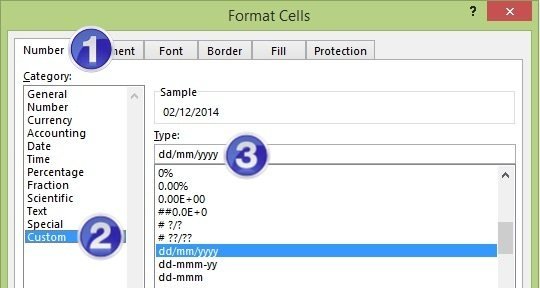
1First, select the date cell(s), press CTRL 1 (to display the Format Cells dialog) and select the Number tab.
2Select the Custom category.
3Enter your custom date format into the Type box, as described below.
There are 3 primary date placeholders –
- d (day)
- m (month)
- y (year)
but the magic happens in how you use them.
5. Placeholder breakdown for custom date formats
- d or dd Day number (e.g. 5 or 05)
- ddd Short day name (e.g. Mon)
- dddd Full day name (e.g. Monday)
- m or mm Month number (e.g. 6 or 06)
- mmm Short month name (e.g. Sep)
- mmmm Full month name (e.g. September)
- mmmmm First letter of month name (i.e. J-D)
- yy Two digit year
- yyyy Four digit year
- / Inserts a slash character
- – Inserts a dash
- Add text before, in between or after placeholders by placing it inside quote marks, e.g. “Due date: ” dd-mmm-yy
- [$-fr] or [$-40C] converts to French language. There are plenty of other languages.
- Add colour prefixes such as[Red], [Blue] or [Green].
Here’s some examples of date formats that you can create that do not appear in the regular list. All of these examples use the date 2 Dec 2014.
- d/m/yy e.g. [todays_date format=”d/m/yy”]
- dd/mm/yyyy e.g. [todays_date format=”dd/mm/yy”]
- dddd, d mmmm yyyy e.g. [todays_date format=”dddd, d, mmmm yyyy”]
- d mmmm yyyy (ddd) e.g. [todays_date format=”d mmmm yyyy (ddd)”]
- dd-mmm-yy e.g. [todays_date format=”dd-mmm-yy”]
- ddd e.g. [todays_date format=”ddd”]
- dddd e.g. [todays_date format=”dddd”]
- mmm e.g. [todays_date format=”mmm”]
- mmmm yyyy e.g. [todays_date format=”mmmm yyy”]
6. Write a formula to transform an existing date into a custom date format
Any of the custom date formats mentioned previously can be used within a TEXT formula to convert an existing date (in whatever existing format) to your desired format.
Say, cell A1 contains the date [todays_date format=”d/mm/yyyy“].
In a new cell, type . . .
=TEXT(A1, “dddd, dd mmmm yyyy”)
This results in [todays_date format=”dddd, d, mmmm yyyy”].
You can replace the placeholders within the quotes with anything you want.
7. How to remove a custom date format in Excel
To revert cells back to the standard date format:
1Select the cells with custom date formatting.
2Press CTRL 1 to open the Format Cells dialog.
3Click the Number tab.
4Select Date from the category list.
5Choose your preferred standard date format from the list.
Alternatively, select General from the category list to remove all formatting and display the date as a serial number.
8. How to use Format Painter to copy custom date formats
Once you’ve created the perfect custom date format, you might want to use it elsewhere in your workbook, or even in other spreadsheets.
1Open the workbook containing your custom format.
2Select a cell with the custom format applied.
3Click the Format Painter button on the Home tab (it looks like a paintbrush).
4Navigate to another worksheet or workbook.
5Select the cells you want to apply the same format to.
The custom date format will be applied. For even faster application, double-click the Format Painter to keep it active while you format multiple ranges.
9. Troubleshooting steps
10. Frequently Asked Questions (FAQ)
11. Key takeaways
- Use slashes for date entry. Always separate day, month and year with forward slashes (/) to ensure Excel recognizes your input as a date, not text.
- Master the placeholder system. The d, m and y placeholders are the foundation of excel custom date format, with variations like dd, mmm and yyyy controlling how each component displays.
- Access the Custom category. Press CTRL 1, select the Custom category, and enter your format code in the Type box to create any custom date format in excel.
- Combine TEXT formulas with placeholders. Use the TEXT function with your custom format codes to convert existing dates into any display format you need.
- Copy formats with Format Painter. Double-click the Format Painter to apply your excel date formatting to multiple ranges or different workbooks quickly.
Shhh! Keep this to yourself but Jason is the guy they sneak in the back door to fix Microsoft 365 disasters when all else has failed. He's quite the straight shooter, breaking things down into simple steps and giving you advice you can actually use.
Yes, he takes on client projects and 1:1 troubleshooting so if you would like to finally get that project finished - you know the one - then go ahead - just reach out.
12 responses to “Excel Custom Date Formatting Made Easy”

Hi Jaweed. Unfortunately, Excel’s custom number format feature does not provide the option to capitalize text. Custom formats work at a display level and don’t have text transformation functions.
The only option is to wrap your date format code in the PROPER() function to capitalize each first letter, i.e. =PROPER(TEXT(A1,”[$-fr]dddd, d mmmm”)). Unfortunately, in your case this has downsides too –
(a) the month will also be capitalised, although you could go hyper-specific with =PROPER(TEXT(A1,”[$-fr]dddd, d”)) & LOWER(TEXT(A1, “[$-fr]mmmm”))
(b) the result will be text format rather than date format, so you are unable to use the date in calculations.
(c) you’re using another cell which clutters your worksheet.
How do I capitalize the first letter of the day, please? I’m using [$-fr]dddd, d mmmm and it is showing jeudi, 27 novembre. However, I need it to show Jeudi, 27 novembre.
Can you add a custom date format to the DATE drop down menu?
No, sorry.
To create a one-click date-formatting option, the easiest way is to record or write a short macro and attach the macro to a Quick Access Toolbar (QAT) icon.
How do I capitalize the month initials. 16Mar2021 = 16MAR2021?
Unfortunately, you cannot do this with a custom format. You have to manipulate it with a formula instead.
For example, if A1 contains your date, your formula in B1 could be =UPPER(TEXT(A1, “ddmmmyyyy”))
Sorry to be the bearer of bad news!
Thanks for this, I use the custom format to show only months in my charts that tracks the number of members in our association.
Great to hear. Thanks Ben.
Thank you for the sharing, it very helpful to my question~
No worries Hailee. I’m glad it was useful.
How to show H or S in it just as a letter not a time data?
Thanks for your question Hailee. You can include any fixed item in your custom format by prefixing it with a backslash (\). For example to show 12:30 as 12H:30M use the custom format hh\H:mm\M. All the best. Jason




Leave a Reply
You must be logged in to post a comment.