

Knowledge base
How to Link Excel Workbooks: Reference Data Across Multiple Files
Connect Excel workbooks seamlessly with external cell references. Learn proper syntax, manage links through the Edit Links dialog, and automate data updates.

First published: 28-May-2024
Last updated: 28-Nov-2025
5 min read

When referencing cells in a formula, data to be sourced from cells on the same worksheet, from other sheets or from a different workbook. Referencing cells in this way creates dynamic data connections so if the data changes the formula output will also be updated.
This has many benefits, for example:
- Data syncs automatically across multiple files
- Manual data entry is minimised and copy-paste errors are eliminated
- Data is managed centrally
- Source data updates dependant cells in real time
1. What is Excel workbook linking?
Excel workbook linking is the process of creating external cell references to data in a different workbook. The dependent workbook is the one which contains the formulas that references the data in the source workbook. Workbook linking ensures that the dependent workbook always references the most up-to-date information from external data sources.
External workbook references are dynamic, which means that if the data in the source workbook changes then these changes are reflected in the dependent workbook automatically.
a) How to reference other cells in the same sheet
To reference a cell on the same worksheet, the format is:
=F5
b) How to reference cell(s) on another worksheet sheet
When referencing another sheet within the same workbook, the format is:
Worksheet name ! Cell address
For example, to reference a cell on a different worksheet called January, use
=January ! G2
c) How to reference cell(s) on another workbook
The format for a full external cell reference in another workbook is:
[Workbook name] Worksheet name ! Cell address
For example, to create an external workbook reference to a different workbook called Sales_2025, use:
=[Sales_2025] Sales ! A1
Please note:
- If the workbook being linked to is CLOSED, the full pathname and the workbook name is used.
- If the workbook being linked to is OPEN, only the workbook name is used.
- When you create the link to the second workbook, ensure it is open first. When you close the second workbook, Excel adapts the formula reference for you by inserting the full pathname. As soon as you open up the second workbook again, the pathname is removed.
2. How to view and manage external workbook references
All external workbook references are managed through Excel’s Edit Links dialog box.
1Click the Data tab.
2Click the EDIT LINKS button on the Connections group.
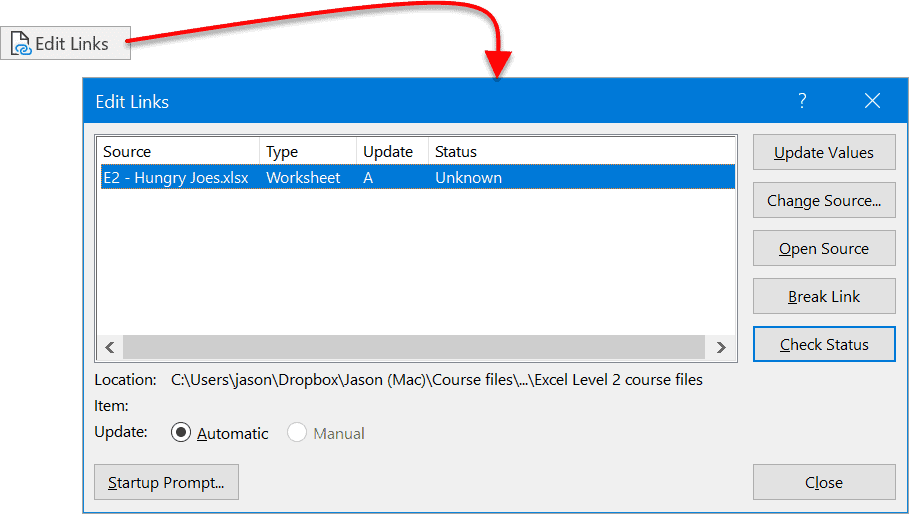
This displays the Edit Links dialog box. If the Links option is not available in the Connections group (i.e. it is greyed out), then the current workbook does not link to any other workbooks.
3To update external data from the linked source workbooks, click Update Values button.
4To change the source reference, i.e. select a different file or a new location, click the Change Source button.
5To determine whether the source workbook is open, click the Check Status button.
6To open the source workbook, click the Open Source button.
7To break the links to all other workbooks, click the Break Links button. It is important to note that this option is all or nothing. It is not possible to break a link to one workbook but leave the links to the remaining links active. There are a number of reasons why a link may need to be broken:
- If the data in the source workbook is no longer needed, e.g. if the data has been consolidated into the dependent workbook.
- If data collection is complete, a report has been put together, and the figures must not change.
8When dealing with intermediary links, (e.g. A links to B and B links to C), ensure that all workbooks are open before changing anything.
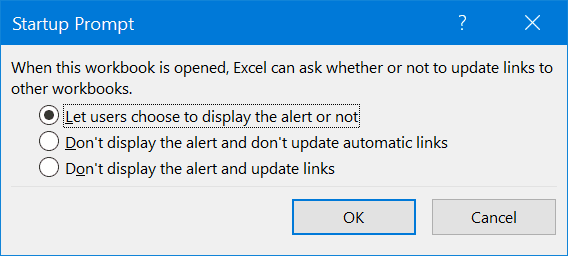
- Click Start Prompt… to specify what message to give to the user and what actions to take regarding links, when the workbook is first opened.
- Changes made to the source workbook reflect in the dependent workbook automatically.
3. Troubleshooting external workbook references
When working with Excel workbook linking, you may encounter common issues that can disrupt your external data connections. Here are the most frequent problems and their solutions:
4. Frequently Asked Questions about Excel workbook linking
5. Summary
- When referencing a cell in the same worksheet, the cell reference appears ‘as-is’. For example:
A1
- When referencing a cell in a different worksheet, the cell reference is prefixed by the worksheet and separated by an exclamation mark. For example:
Sheet1!A1
- When creating external workbook references, the cell reference is prefixed by the workbook name in square brackets, then the worksheet name, an exclamation mark and then the cell reference. For example:
[Book2]Sheet1!A1
- If the workbook is closed, the full pathname of the workbook is placed in the cell reference. When the workbook is open, only the workbook name is displayed.
- If the workbook name or worksheet name contains spaces, it is enclosed in single quotes. For example:
[‘Workbook 1′]’Worksheet 1’!A1
- To view or manage external workbook references that the current workbook links to, click the Edit Links button on the Data ribbon.
Shhh! Keep this to yourself but Jason is the guy they sneak in the back door to fix Microsoft 365 disasters when all else has failed. He's quite the straight shooter, breaking things down into simple steps and giving you advice you can actually use.
Yes, he takes on client projects and 1:1 troubleshooting so if you would like to finally get that project finished - you know the one - then go ahead - just reach out.

Leave a Reply
You must be logged in to post a comment.