

Knowledge base
Create Tables in Word Fast (With Handy Time-Saving Tips)
Discover how to create tables in Word quickly, then format them beautifully. This post covers everything from basic creation to repeat header rows.

First published: 10-May-2021
Last updated: 05-Mar-2026
14 min read

Tables in Word are useful in so many situations. In this post you’ll discover how to create tables, then manipulate and design them in the quickest and easiest way to provide that visual punch.
Mastering how to create tables in Word has the following benefits:
- Save time with instant layouts: Create professional table structures in seconds instead of wrestling with tabs and spaces that never quite line up.
- Make your documents look polished: Apply designer-quality formatting with one click using built-in table styles that make even complex data easy to read.
- Keep multi-page tables readable: Automatically repeat header rows so your column headings appear on every page without manual copying and pasting.
Related Post: Enhance your Word tables with these advanced features
- 1. When Should You Use Word Tables?
- 2. How to Create Tables in Word
- 3. How to Move Around a Word Table Using the Keyboard
- 4. How to Select Word Table Components
- 5. How to Insert an Extra Row or Column in a Word Table
- 6. How to Remove/Delete a Row or Column in a Word Table
- 7. Word Table Formatting (It's Quick!)
- 8. How to Customise Borders and Shading
- 9. How to Repeat Header Rows in Word Tables
- 10. How to Remove a Table in Word
- 11. How to Convert Text to a Table in Word
- 12. Troubleshooting
- 13. Frequently Asked Questions (FAQs)
- 14. Recap of all the Key Points
1. When Should You Use Word Tables?
There are many reasons to create tables in Word, including . . .
- To show an actual table of data.
- To organise and position text, images and other elements on the page.
- You don’t have to waste time setting up tabs (which are archaic).
Many years ago, typewriters ruled the world. And a feature of a good typewriter was the tab stop, which was a device that essentially let you control indentation.
Over the years many people have continued to use tabs in Word documents to indent text. But they create more problems than they solve and are finicky and time-consuming to set up properly.
Tables provide a much easier way to organise content on a page.
2. How to Create Tables in Word
1Select the Insert tab.
2Click the Tables icon in the Tables group.
3Move your mouse pointer into the table grid until the required number of rows and columns are highlighted orange, then left-click.
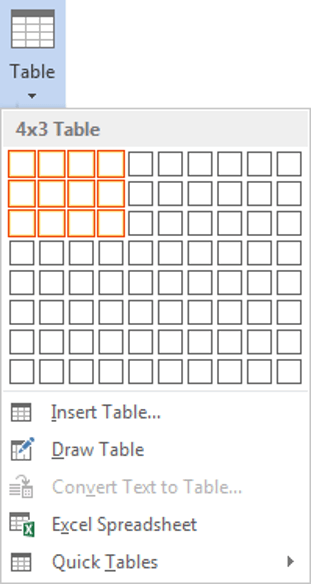
If you need to tables larger than 10×8 click Insert > Table > Insert Table, and manually enter the number of rows and columns you need in the dialog box that appears.
An empty table is inserted into the document.
Two new tabs, Design and Layout are also added to the ribbon area, under the banner of Table Tools.


3. How to Move Around a Word Table Using the Keyboard
- While the table is empty, you can use the cursor keys to move around the cells. However, when the cells contain information, using the cursor keys will move through the cell content first before moving to the next cell.
- You can left-click in any cell to position the cursor.
- Press Tab to move to the next cell. The cursor will move across and then down the table.
- Press Shift + Tab to move to the previous cell.
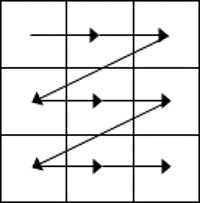
NB. Using Tab is better than using the cursors as it will move to the next/previous cell regardless of whether there is information in the cells.
NB2. If you press Tab while you are in the last cell, a new row will be added to the bottom of your table.
4. How to Select Word Table Components
How to select a cell in a table:
1Position the mouse pointer inside the cell on the bottom-left corner of the cell. The pointer will change shape to a solid black arrow that points up and right.
2Left-click.
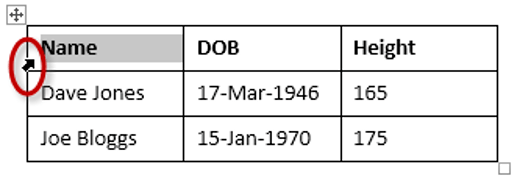
How to select a row in a table:
1Position the mouse pointer in the left margin in line with the row you want to select. The mouse pointer will change to a white arrow that points up and right.
2Left-click.
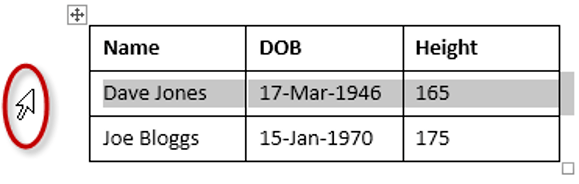
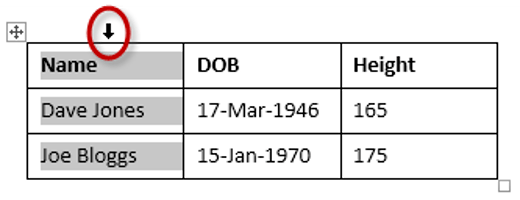
How to select a column in a table:
1Position the mouse pointer so that it rests on the top border of the table, above the column you want to select. The mouse pointer will change to a solid black arrow pointing down.
2Left-click.
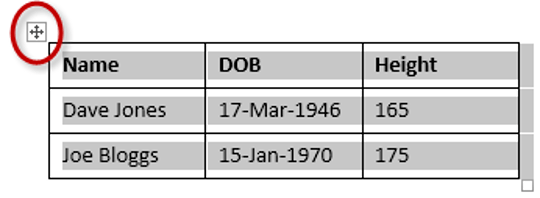
How to select the entire table:
1Position your mouse pointer over the 4-headed arrow icon situated at the top-left of the table.
2Left-click.
5. How to Insert an Extra Row or Column in a Word Table
Insert a row using the Table Tools ribbon
1Position the cursor in a cell.
2Select the Layout tab, under the Table Tools banner.
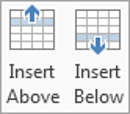
3Click Insert Above or Insert Below in the Rows and Columns group.
Insert a row using the on-screen plus symbol
1Position the cursor to the left of the table, but in close proximity.
2A plus symbol will appear above or below the mouse pointer indicating where the new row will be added.
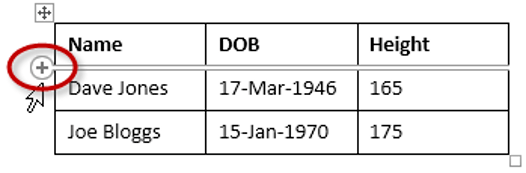
3Nudge the mouse pointer up or down to move the plus sign above or below.
4Left-click to insert the new row.
Insert a column using the Table Tools ribbon
1Position the cursor in a cell.
2Select the Layout tab, under the Table Tools banner.
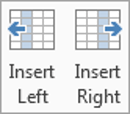
3Click Insert Left or Insert Right in the Rows and Columns group.
Insert a column using the on-screen plus symbol
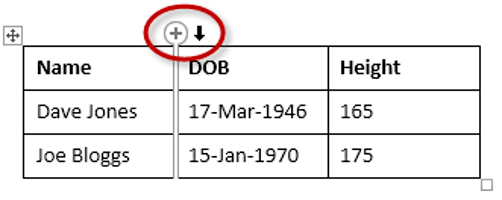
1Position the cursor above a column, but in close proximity to the table.
2A plus symbol will appear to the left or right of the mouse pointer indicating where the new column will be added.
3Nudge the mouse pointer left or right to move the plus sign to the left or the right of the column.
4Left-click to insert the new column.
6. How to Remove/Delete a Row or Column in a Word Table
To delete the current row or column:
1Position the cursor in any cell of the row you want to delete.
2Select the Layout tab, under the Table Tools banner.
3Click the Delete icon in the Rows and Columns group.

4Choose Delete Row or Delete Column from the drop-down menu.
7. Word Table Formatting (It’s Quick!)
Word provides you with a number of pre-set table designs. This means that Word formats the headings and the data, using a large a variety of borders and fill colours in a way that makes it look like a professionally produced table. As a beginner this simple technique will save you a lot of time.
1Position the cursor in any cell in the table.
2Select the Design tab under the Table Tools banner.
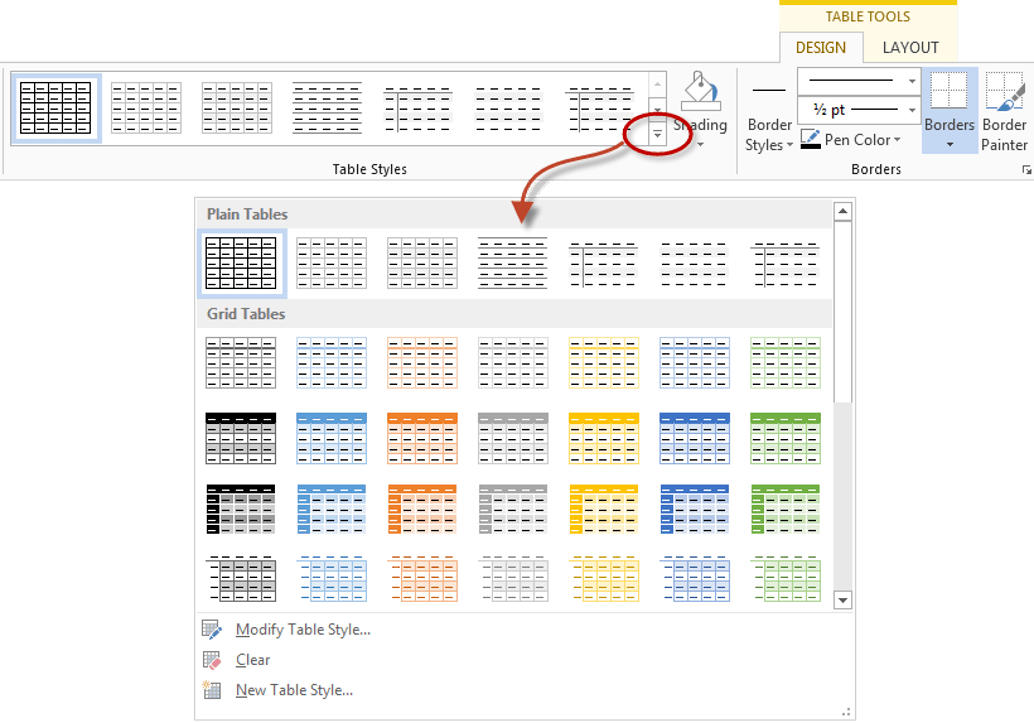
The Table Styles group lists a number of table designs. To get the full list, click the More button beneath the table styles scroll bar.
The default table style is Table Grid in the Plain Tables category which adds simple gridlines but no shading to your table.
Live Preview allows you to hover over a design and see it applied to your table. If you like what you see, click to select the table design.
In the Table Style Options group of the Design tab, tick the components that you have in your table. For example, if your table has column headings, tick Header Row. In doing this, the various parts of your table are formatted accordingly.
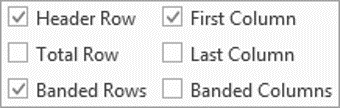
- Header Row: This will emphasise the header row by making the text bold or applying a different cell colour (depending on the table style selected).
- Total Row: This will emphasise the bottom table row by making the text bold or applying a different cell colour (depending on the table style selected).
- First Column: This will emphasise the first column (for labels etc.) by making the text bold or applying a different cell colour (depending on the table style selected).
- Last Column: This will emphasise the last column (for row totals etc.) by making the text bold or applying a different cell colour (depending on the table style selected).
- Banded Rows: This will make odd rows one colour and even rows a different colour. This helps readability.
- Banded Columns: This will make odd columns one colour and even columns a different colour. This helps readability.
8. How to Customise Borders and Shading
The Table Styles Gallery allows you to completely format a table with one click. Whereas you used to need some nous, anybody can now create a professional looking design.
However, you will often still need to apply your own border and shading, and manually change a table design. With a little effort can add a lot of flavour to your page and dramatically enhance the overall appearance of the document.
Set the borders on Word tables
1Select the portion of the table that you wish to set the borders for. This may be the entire table, a row or rows, a column or columns or a selection of cells.
2Select the Design tab under the Table Tools banner.
3Select the Borders icon. A drop-down list appears. This list shows every combination of border that can be turned on or off. The icons with a shaded background are currently switched on. The rest are switched off.
4Click any icon to switch the border on or off. The border style that is applied is the default style (½ pt solid black line) or the last style that was used.
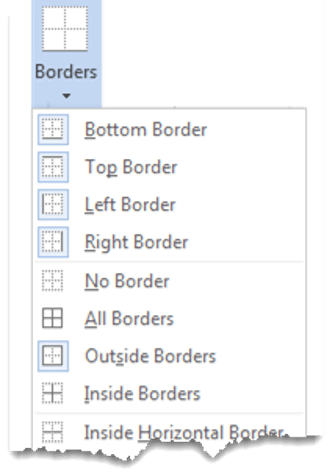
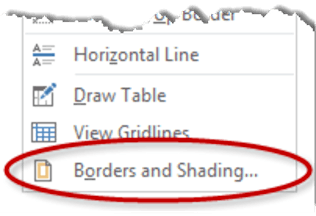
5To apply customised borders, with different colours, styles and widths, click the Borders & Shading option at the bottom of the list to display the Borders and Shading dialog box.
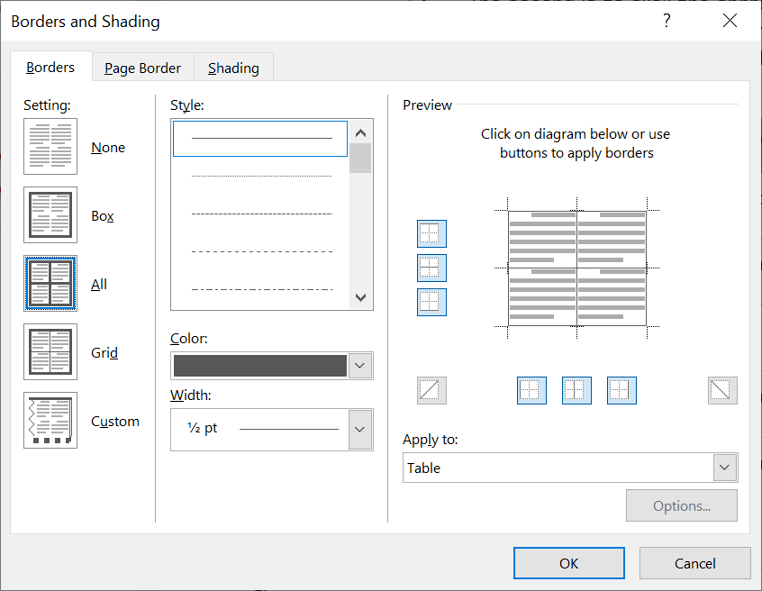
Your selection will always have an outer border, and if you selected more than one cell, you will have some inside borders as well. The easiest way to use the dialog box is to start on the bottom-middle and work your way up and right.
1Select the colour and width (thickness) that you would like for your border.
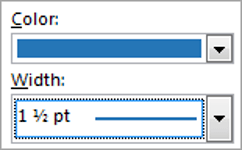
2Choose a style (e.g. dotted, dashed, double, solid etc.)
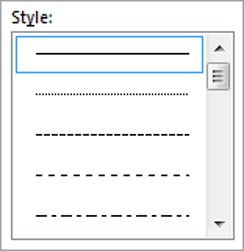
3Paint your borders. There are two ways to do this.
- The first way is to click directly on a border in the Preview itself.
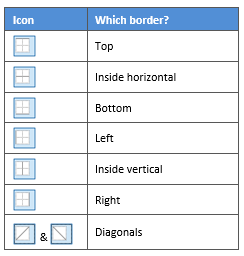
- The second way is to click the appropriate icon around the edge of the Preview section that represents each border. Depending on which cells you selected in your table, some of these icons may not be available.
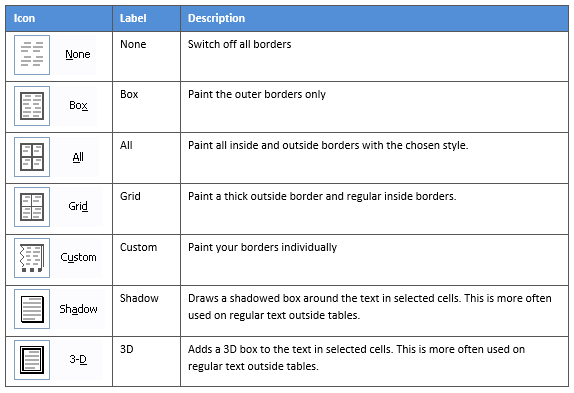
On the left-hand side of the dialog box, there are some pre-defined border combinations which you can use to save yourself some time. Depending on your selection of cells, the pre-defined options may differ. Here’s a run-down:
Fill colour (shade the table cells)
1Select the portion of the table that you wish to shade. This may be the entire table, a row or rows, a column or columns or a selection of cells.
2Select the Design tab under the Table Tools banner.
3Click the Shading icon. The colours that you see displayed match the current theme of the document. Themes were discussed earlier in the course.
4Click a colour in the palette.
While you can pick any colour, it is recommended to stick with the light colour shades, otherwise your tables will appear very loud and ugly, like they’re shouting in your face. Subtle is the order of the day. The exception to this is column headings or other cells that you wish to differentiate. Under these circumstances, you can use a dark colour, but use a light font with it.
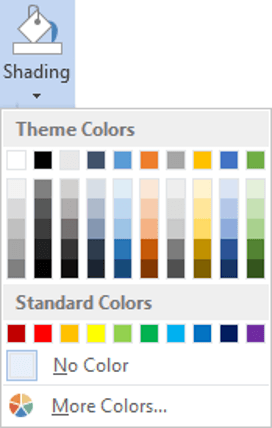
If you cannot find the exact colour you need:
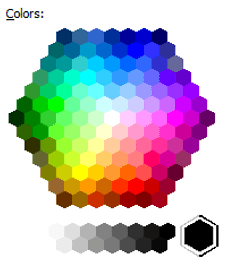
- Click the More Colours link underneath the palette. This displays a larger, more accurate colour palette.
- And if that’s not enough, click the Custom tab and you’ll get a really fine selection of colours (you can even enter your own RGB settings if you know them).
9. How to Repeat Header Rows in Word Tables
Here’s a common problem.
When a table spills over two or more pages, you want the column headings to be printed at the top of each page that the table appears on.
Many people insert manual page breaks, then copy and paste their table header rows at the top of each page.
When rows are added or removed from tables in Word, the table headers end up half way down the page.
Dont do that!
There is a simple tool that will eliminate this problem.
1Ensure that the table is a single table, with no manual page breaks in the middle, and one header at the top. The table header may occupy more than one row, it doesn’t affect the way this feature works.
2Position the cursor somewhere in the top row of the table.
3Select the Layout tab under the Table Tools banner.
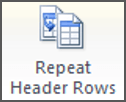
4Click the Repeat Header Rows icon in the Data group.
Now, it doesn’t matter how many rows tables in Word contain, if the table ever spills across into another page, the header row (which normally displays the column headings) will always appear at the top of the table.
10. How to Remove a Table in Word
When you need to remove a table completely from your document, there are two simple methods.
Method 1: Use the Delete Table command:
1Position your cursor anywhere in the table you want to remove.
2Select the Layout tab under the Table Tools banner.
3Click the Delete icon in the Rows and Columns group.
4Choose Delete Table from the drop-down menu.
Method 2: Use the table selector
1Click the 4-headed arrow icon at the top-left of the table to select the entire table.
2Press the Delete key on your keyboard.
Note: Pressing Delete or Backspace when you’re just in a cell (without selecting the whole table) will only delete the cell contents, not the table structure itself.
11. How to Convert Text to a Table in Word
If you have existing text separated by tabs, commas or other characters, Word can automatically convert it into a table.
1Select the text you want to convert. Make sure each row is on a separate line and columns are separated by tabs, commas or another consistent character.
2Select the Insert tab.
3Click the Table icon and choose Convert Text to Table from the drop-down menu.
4In the dialog box, specify how your text is separated (tabs, commas, paragraphs or other characters).
5Click OK.
Word will create a table with the appropriate number of rows and columns based on your text structure.
12. Troubleshooting
13. Frequently Asked Questions (FAQs)
14. Recap of all the Key Points
- There are many reasons to create a table in Word including displaying a table, avoiding tabs and position data with accuracy.
- To create a table in Word, select the Insert tab, click the Table icon and choose your desired number of rows and columns from the grid.
- Two tabs under Table Tools on the ribbon – Design and Layout.
- You can press the Tab key or Shift + Tab keys to move to the next/previous cell in a table.
- The four elements of a table are cells, rows, columns and the whole table. Each can be selected using different mouse pointer positions and clicking techniques.
- Insert a row by selecting Table Tools > Layout, then clicking the Insert Above or Insert Below icons. Alternatively, hover to the left of a row and click the plus symbol that appears above or below the mouse pointer.
- Insert a column by selecting Table Tools > Layout, then clicking the Insert Left or Insert Right icons. Alternatively, hover above a table column and click the plus symbol that appears to the left or right of the mouse pointer.
- Remove columns and rows by positioning the cursor in the row or column to be removed, then clicking the Delete icon on the Table Tools > Layout tab then choosing Delete Row or Delete Column.
- Format tables using the Table Style gallery or by manually setting the shading and borders. Both sets of tools are found on the Table Tools > Design ribbon.
- When using the Microsoft Table Styles, you can control the behaviour of the formatting by setting the Table Style options – 6 tick boxes that define the structure of your table.
- Repeat Header Rows on Word tables (normally, that’s the column headings) for long tables that spill across multiple pages
- Remove an entire table using the Table Tools > Layout > Delete Table command, or by selecting the whole table and pressing Delete on the keyboard.
- Convert existing text into a table format using Insert > Table > Convert Text to Table.
Shhh! Keep this to yourself but Jason is the guy they sneak in the back door to fix Microsoft 365 disasters when all else has failed. He's quite the straight shooter, breaking things down into simple steps and giving you advice you can actually use.
Yes, he takes on client projects and 1:1 troubleshooting so if you would like to finally get that project finished - you know the one - then go ahead - just reach out.
