

Knowledge base
Microsoft Word Tables: Advanced Settings & Features
Uplevel your Microsoft Word tables with these advanced techniques. Split tables, prevent rows from breaking, resize table components with accuracy.

First published: 10-Sep-2021
Last updated: 22-Oct-2025
15 min read

If you don’t use tables in your Word documents, you should be! They are one of the 3 content pillars, alongside text and images that allow you to construct any layout and content structure in your documents.
Following this beginners guide to Word tables which covers the basics of tables in Word, such as how to create Word tables, how to add or remove rows/columns and how to apply simple table formatting, this post explores some of the lesser-known features of Word tables, answers the frequently asked questions and tackles the prickly issues.
Mastering advanced Microsoft Word table features has the following benefits:
- Save time with automation. Features like repeating header rows and autofit settings eliminate manual adjustments when your tables change or span multiple pages.
- Create professional layouts. Precise control over cell margins, alignment and positioning helps you design documents that look polished and well-structured.
- Handle complex data efficiently. Split and merge cells strategically to organize information in ways that make sense for your specific content and audience.
Let’s get right to it.
- 1. How to Choose the Correct Autofit Setting
- 2. How to Hide or Show Gridlines in Word Tables
- 3. How to Merge or Split Cells in a Word Table
- 4. How to Split a Word Table into 2 Separate Tables
- 5. How to Repeat Table Headings on Every Page
- 6. How to Resize the Column Width in a Word Table
- 7. How to Resize the Row Height in a Word Table
- 8. How to Prevent Content in a Word Table Row from Splitting
- 9. How to Position a Microsoft Word Table on a Page
- 10. How to Position Content within a Word Table Cell
- 11. How to Rotate Text within a Word Table Cell
- 12. How to Set Cell Margins on a Microsoft Word Table
- 13. How to Convert Plain Text into a Word Table
- 14. How to Convert a Word Table into Plain Text
- 15. How to Create Excel-Style Formulas in a Word Table
- 16. How to Reverse Word Table Settings
- 17. Additional Microsoft Word Table Tips
- 18. Troubleshooting Steps
- 19. Frequently Asked Questions
- 20. Key Takeaways
1. How to Choose the Correct Autofit Setting
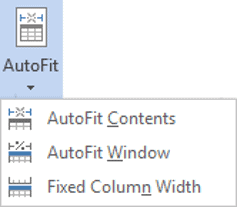
The Autofit behaviour determines the width of the table columns in relation to the page size, contents and margin settings.
- Fixed column width allows you to define an exact width for each of the table columns.
- AutoFit to Contents allow each column width to be condensed to the widest content of the column. Data will never be truncated as a result. It is best to use this option once your table is populated.
- AutoFit to Windows stretches the table to its maximum width to fit within the left ad right margins.
To change the Autofit behaviour of the table:
1Select the Layout tab under the Table Tools banner at the top of the screen.
2Click the Autofit icon in the Cell Size group.
3Choose an Autofit option.
2. How to Hide or Show Gridlines in Word Tables
Gridlines allow you to see the row and column divisions of your Word tables, even when the the borders are switched off. When you come to print your document, it will not print gridlines. the only table borders that will print are those you have explicitly turned on.
To toggle the table gridlines on or off:
1Select any cell in any table.
2Select the Layout tab under the Table Tools banner.
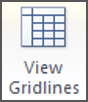
3Click the View Gridlines icon in the Table group. When the icon has an orange background, the gridlines are switched on.
If you are not sure how your Word tables will look when they are is printed, click the File tab, then choose Print. Alternatively, press Ctrl P. Don’t worry, it won’t print straight away, but it does provide a preview of how it will look when printed.
3. How to Merge or Split Cells in a Word Table
Sometimes you need to merge cells (e.g. the header row of a table). At other times you need to split a cell into multiple cells.
To merge cells:
1Select the cells you wish to merge. The cells must be adjacent (next to each other) and linear (i.e. in a row, in a column or in a block).
2Select the Layout tab under the Table Tools banner.
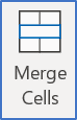
3Click the Merge Cells icon in the Merge group.
To split a cell:
1Select the cell(s) you wish to split.
2Select the Layout tab under the Table Tools banner.
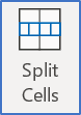
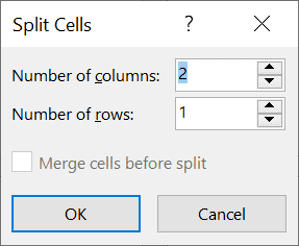
3Click the Split Cells icon in the Merge group.
4Specify how many rows and columns you wish to split the cell(s) into.
5Click OK
4. How to Split a Word Table into 2 Separate Tables
Being able to split Word tables is extremely useful. Perhaps you have a long table that won’t fit on a single page and you want to control where the table splits. Or perhaps you want to split a large table into smaller chunks, maybe creating separate tables for each category, or each group or each department.
Here’s the process:
1Position the cursor in the row that will become the first row of the new table.
2Select the Layout tab, under the Table Tools.
3Click the Split Table icon on the Merge group.
If your table was set with Repeating Headings (see next section), both tables will have identical headings. Otherwise the second table will only show the data cells after the split point.
5. How to Repeat Table Headings on Every Page
When you have large tables that flow into a second or third page, the column headings only appear once at the top of the table.
You may be tempted to copy and paste the headings to the top of each subsequent page, but when you insert or delete rows, the copied header row can often appear mid-way down the page.
There is a simple tool that will eliminate this problem.
1Ensure that the table is a single table, with no manual page breaks in the middle.
2If there is just one header row, place the cursor in that row. If two or more rows constitute the table header, select all header rows.
3Select the Layout tab under the Table Tools banner.
4Click the Repeat Header Rows icon ion the Data group.
6. How to Resize the Column Width in a Word Table
To change the width of a column, there are two methods you can use:
Method 1: Click-and-drag the column divider
1Position the mouse pointer over a column divider. The pointer will change to a double-headed left-right arrow.
2Click and drag to the right or the left to resize the column.
3You can also Best Fit the column by double-clicking the column divider. This reduces the width of the column to the widest content of the column.
Method 2: Manually set each column width (this method is more accurate).
1Position the cursor in the column you want to change.
2Select the Layout tab under the Table Tools banner.
3Click the Properties icon in the Table group.
4Click the Column tab.
5Tick the Preferred width box and type in the measurement. The measurement can be fixed width (e.g. 5cm) or a percentage of the table width (e.g. 20%).
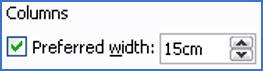
6Click the ← Previous Column or →Next Column buttons to go to the previous or next column, then set the width for each column.
7. How to Resize the Row Height in a Word Table
To change the height of a row, there are two methods you can use:
Method 1: Click and drag the row divider.
1Position the mouse pointer over a row divider. The pointer will change to a double headed up-down arrow.
2Click and drag upwards or downwards to resize the column.
3You can also Best Fit the row by double-clicking the row divider. This reduces the height of the column to the highest content of the column.
Method 2: Manually set each row height (this method is more accurate).
1Position the cursor in the row you want to change.
2Select the Layout tab under the Table Tools banner.
3Click the Properties icon in the Table group.
4Click the Row tab.
5Tick the Specify height box and type in the measurement.
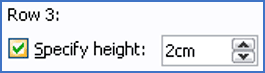
- Set Row height is to EXACT if you do not want the row height to ever change. Longer content may be truncated.
- Set Row height is to AT LEAST to set a minimum height for the row but allow it to expand to accommodate longer content.
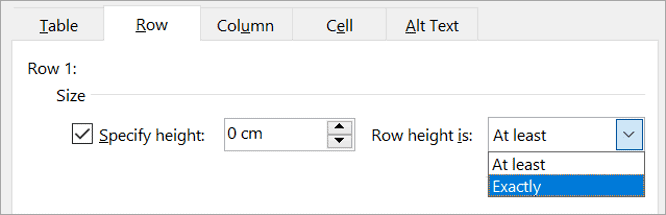
6Click the Previous Row or Next Row buttons to go to the previous or next row and set the heights for each row.
8. How to Prevent Content in a Word Table Row from Splitting
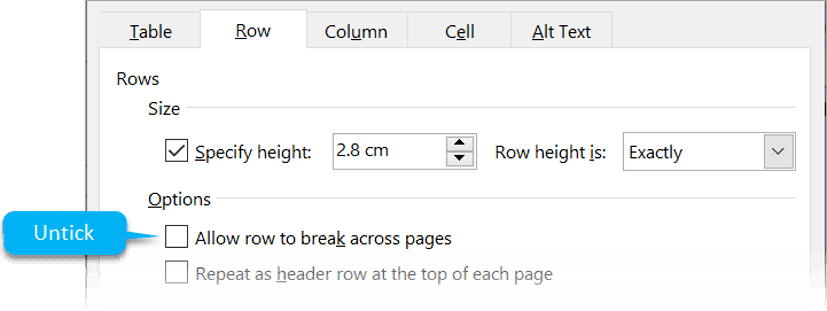
The default setting is to allow rows to break between pages.
To stop that from happening and keep all row content together as a unit:
1Click in the appropriate row.
2Click the Layout tab under the Table Tools.
3Click the Properties icon on the left.
4Click the Row tab.
5Untick the box labelled Allow rows to break across pages.
9. How to Position a Microsoft Word Table on a Page
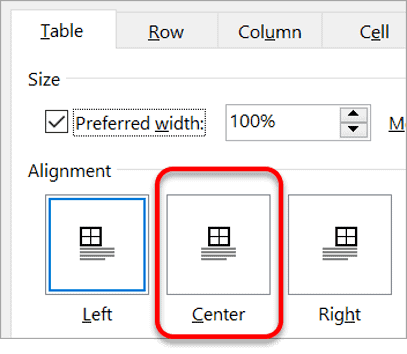
To position the table on the page – not the content within the table:
1Click somewhere in the table.
2Click the Layout tab under the Table Tools.
3Click the Properties icon on the left.
4Click the Tables tab.
5Select the Center option.
10. How to Position Content within a Word Table Cell
To align cell content horizontally, simply use the alignment icons in the Paragraph group of the Home tab.

To align cell contents vertically:
1Select the cell(s) whose contents you wish to align.
2Select the Layout tab under the Table Tools banner.
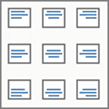
3Locate and select an icon within the group of 9 alignment icons. From left-to-right and top-to-bottom, these icons represent:
- Top-left, top-middle, top-right.
- Centre-left, centre-middle, centre-right.
- Bottom-left, bottom-middle and bottom-right.
11. How to Rotate Text within a Word Table Cell
If you have a lot of columns in your table and you are running out of screen width, you can rotate the text to 90 degrees, so it is displayed vertically.
1Select the cells whose content you want to rotate.
2Select the Layout tab under the Table Tools banner
3Click the Text Direction icon in the Alignment group. Each click of this icon will switch the angle of the text to 0o, 90o and -90o.
12. How to Set Cell Margins on a Microsoft Word Table
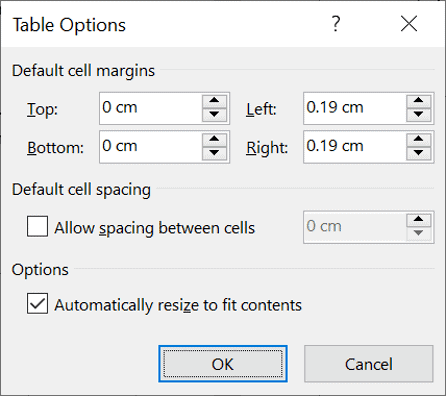
If you need to add some padding to the cells in a table to spread out the contents or compact a crowded table to make it fit the page, then the cell margins give you perfect control.
A cell margin is the gap between the cell border and the cell content.
Cell Margins is a table feature which means the cell margin setting applies to every cell in the table – you cannot have one cell margin measurement in the first cell and a different set of measurements in the second cell.
The default settings for the top and bottom cell margin is 0.
The default setting for the left and right cell margin is 0.19 cm.
1Select any cell in the table, if necessary.
2Click the Layout tab under Table Tools.
3Click the Cell Margins icon in the Alignment group.
13. How to Convert Plain Text into a Word Table
Sometimes you don’t create your tables from scratch.
You may have some data in a list or something you have imported from a CSV (comma separated variable) file.
As long as there is a recognised identifier that can be used to separate each column from the next and each row from the next, you can convert the existing text into a table.
For example, to convert this simple data into a table:
Jan, Feb, Mar
1, 2, 3
4, 5, 6
1Select the data.
2Select the Insert tab.
3Click the Table icon in the Tables group.
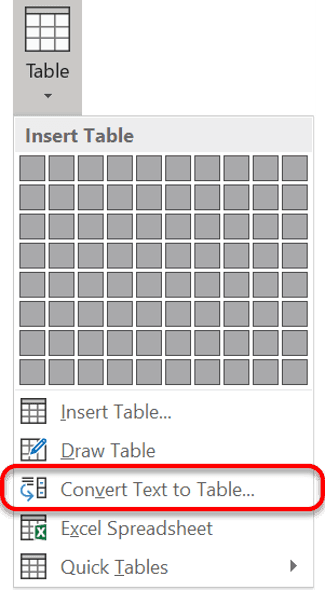
4Choose Convert Text to Table.
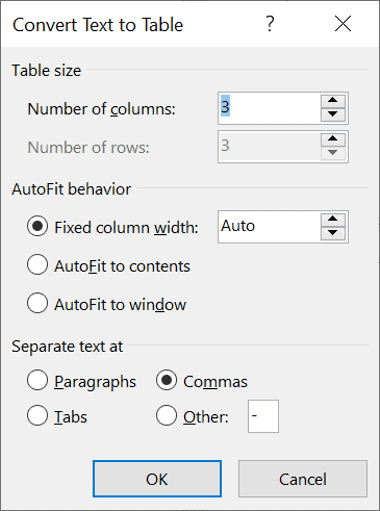
A dialog box is displayed (shown right).
5Start at the bottom. Choose the separator that you are using in your data, e.g. comma.
6The number of columns is calculated automatically based on the separator you chose.
7Set the Autofit behaviour, if you want (you can also do this later from the ribbon)
8Click OK
14. How to Convert a Word Table into Plain Text
To convert a table to regular text:
1Select the table.
2Select the Layout tab under the Table Tools.
3Click the Convert to Text icon in the Data group.
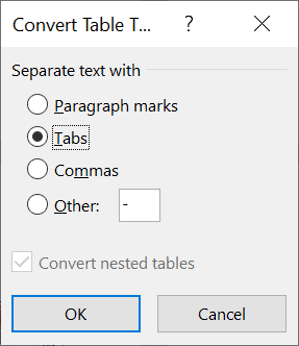
4In the dialog box, choose the separator that will separate each item of data once it has been converted.
5Click OK
15. How to Create Excel-Style Formulas in a Word Table
Microsoft Word is a document creator. Microsoft Excel is a number cruncher. Therefore, whenever you need to perform mathematical calculations, you should choose Excel. However there is a (rather primitive) feature in Word that allows you to create some simple formulas
In Excel, columns are labelled with a letter and rows are numbered. A cell reference is the intersection of column and row. The same applies in Microsoft Word, except you cannot see the labels.
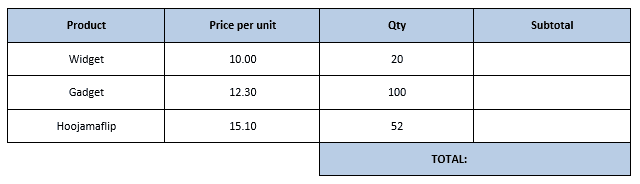
In this simple example, there are four columns, which are referenced by some invisible letters A, B, C and D and five rows that are referenced by some invisible numbers 1 thru 5.
For example, the Price Per Unit for a Widget is found in cell B2, and the Quantity of Hoojamaflips is found in cell C4.
To create a formula
1Position the cursor in the answer cell.
2Select the Layout tab under the Table Tools.
3Click the Formula icon in the Data group. The Formula dialog box is displayed.
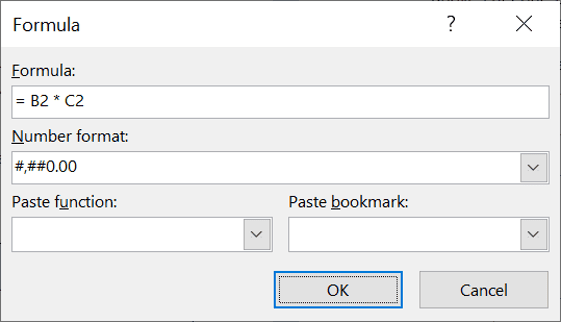
The default formula provided is =SUM(ABOVE) or =SUM(LEFT). This calculates the total of all the cells above the current cell or to the left of the current cell. You can use this or create your own formula. Your formula must start with the equals sign.
The following mathematical symbols can be used:
| ( ) | Calculate anything in brackets first |
| ^ | Exponentials (to the power of) |
| / | Divide |
| * | Multiply |
| + | Add |
| – | Subtract |
So to generate the subtotal for the Widgets order, in the previous example, create a formula in cell D2 which reads = B2 * C2.
You can also apply some basic formatting to the results by opening the Number Format dropdown list
- The # placeholder represents a numerical digit position that will only show if the number is big enough.
- The ‘0’ placeholder represents a padding zero. For example a format of 00000 would show the number 123 as 00123.
- The comma placeholder represents a thousand separator for numbers over 1,000, 1,000,000 etc.
- The $ prefix formats the number as currency (e.g. $12.34 instead of 12.34).
16. How to Reverse Word Table Settings
Sometimes you need to reverse or remove table settings you’ve applied. Here’s how to undo some of the common settings:
To remove repeating header rows:
1Click in the header row.
2Select the Layout tab under the Table Tools.
3Click the Repeat Header Rows icon to toggle it off. The orange background will disappear.
To unmerge cells:
1Select the merged cell.
2Click the Split Cells icon in the Merge group.
3Specify the original number of rows and columns.
To reset text direction:
1Select the cells with rotated text.
2Click the Text Direction icon repeatedly until text returns to horizontal orientation.
17. Additional Microsoft Word Table Tips
How to quickly navigate within large tables
Use Tab to move forward one cell at a time, or Shift+Tab to move backwards. When you reach the last cell in the table and press Tab, Word automatically adds a new row.
How to select entire rows or columns quickly
Hover your mouse just outside the left edge of a row or above the top edge of a column until the cursor changes to a black arrow, then click to select the entire row or column.
How to apply consistent formatting across tables
Use the Table Styles gallery on the Design tab under Table Tools. These pre-built styles ensure consistent formatting and can be customized to match your document theme.
18. Troubleshooting Steps
19. Frequently Asked Questions
20. Key Takeaways
Bottom line: Mastering these advanced Microsoft Word table features gives you precise control over document layouts, saves time through automation and helps you create professional documents that adapt to changing content.
- The AutoFit setting on the Layout ribbon controls how Word tables fit on the page. You can autofit to fit the contents, the window (that’s the gap between the margins) or have a fixed width.
- The table gridlines are there to serve as guides and will not be printed. They are useful when working with tables that have no physical borders set. To switch the gridlines on or off, click View Gridlines on the Layout ribbon.
- Merge cells in Word by selecting adjacent cells and clicking Merge Cells on the Layout ribbon. Split cells in Word using the Split Cells icon in the Merge group.
- To repeat the column headings automatically if a table flows into multiple pages, click Repeat Header Rows on the Layout ribbon.
- A single split table in Word can be divided into multiple tables, each with identical settings including repeating headings if they were set. Click the Split Table icon on the Layout ribbon.
- The width of columns and the height of rows can be adjusted manually using click-and-drag or set precisely using the Properties icon on the Layout ribbon.
- Row content can be kept together by unticking Allow rows to break across pages (Table Tools | Layout tab | Properties icon | Row tab).
- The Microsoft Word table can be positioned within the page using the Properties icon on the Layout ribbon.
- Cell contents can be aligned by clicking one of the 9 alignment icons on the Layout ribbon.
- To rotate text in 90-degree intervals, click the Text Direction icon on the Layout ribbon.
- To add or reduce cell padding within a table, click the Cell Margins icon on the Layout ribbon.
- To convert text to a table, select Insert tab | Table icon | Convert Text to Table.
- To convert a table to regular text, select the table and click Layout tab | Convert to Text.
- To add Excel-style formulas to a Word table, click the Formula icon on the Layout ribbon.
- Advanced Word table settings can be removed or reversed by toggling features off or using the undo command immediately after applying changes.
Shhh! Keep this to yourself but Jason is the guy they sneak in the back door to fix Microsoft 365 disasters when all else has failed. He's quite the straight shooter, breaking things down into simple steps and giving you advice you can actually use.
Yes, he takes on client projects and 1:1 troubleshooting so if you would like to finally get that project finished - you know the one - then go ahead - just reach out.


One response to “Microsoft Word Tables: Advanced Settings & Features”
As always, really helpful. I did not know how easy it was to convert a Word list to table format. Thank you.